Education
Business
Consumer

Blog

How a Pennsylvania School District Streamlined Campus Communications with ViewSonic

SOLUTION BRIEF

How a Pennsylvania School District Streamlined Campus Communications with ViewSonic

line drawing of a circular mazeline drawing of a circular maze
  • A Pennsylvania district needed reliable, standardized displays for both classroom learning and campus-wide communications.


“Teachers got intuitive tools for lesson delivery, while administrators secured a direct channel for campus announcements. Standardizing on one platform made planning, deployment and training easier for IT.”


CHALLENGE

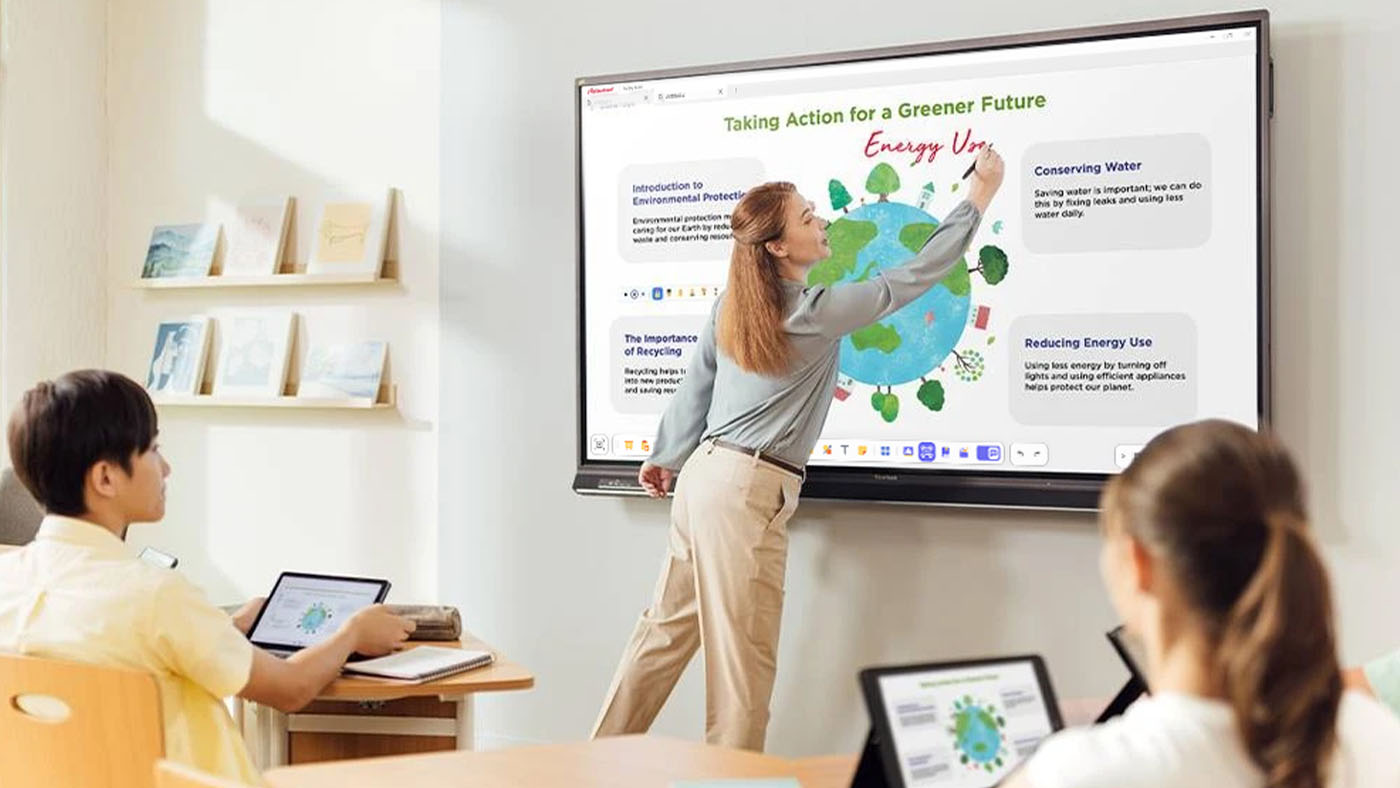
A leading K-12 school district in Pennsylvania wanted to modernize its displays across classrooms and shared spaces. The team needed hardware that could support hands-on learning while providing a reliable network for visual messages across every school.

Existing tech varied by building, was getting unreliable and cost too much to maintain.

That gave the district a chance to standardize on one platform and equip teachers with tools built for active student participation.

At the same time, administrators wanted to boost daily announcements and safety messages in common areas to keep students, staff and visitors connected without breaking the budget.

The district needed a scalable ecosystem that was easy to roll out, manage and support. That led to its partnership with ViewSonic.

What ViewSonic Solutions Did the District Deploy?

The district chose ViewSonic for its broad lineup and consistent user experience across every room. The district’s reseller handled procurement while an installation partner managed the physical deployment across multiple schools.

The district deployed:

  • 489 ViewBoard® interactive displays for classrooms, including 19 IFP6551 (65”), 455 IFP7551 (75”) and 15 IFP8651 (86”) units.
  • 31 CDE commercial displays for common areas, including 5 CDE5531 (55”), 18 CDE6531 (65”) and 8 CDE7531 (75”) units.
  • 450 ViewSonic Manager® Advanced 7-year software licenses for central fleet management.
  • One day of onsite ViewSonic Professional Development training to prepare staff for a smooth rollout.

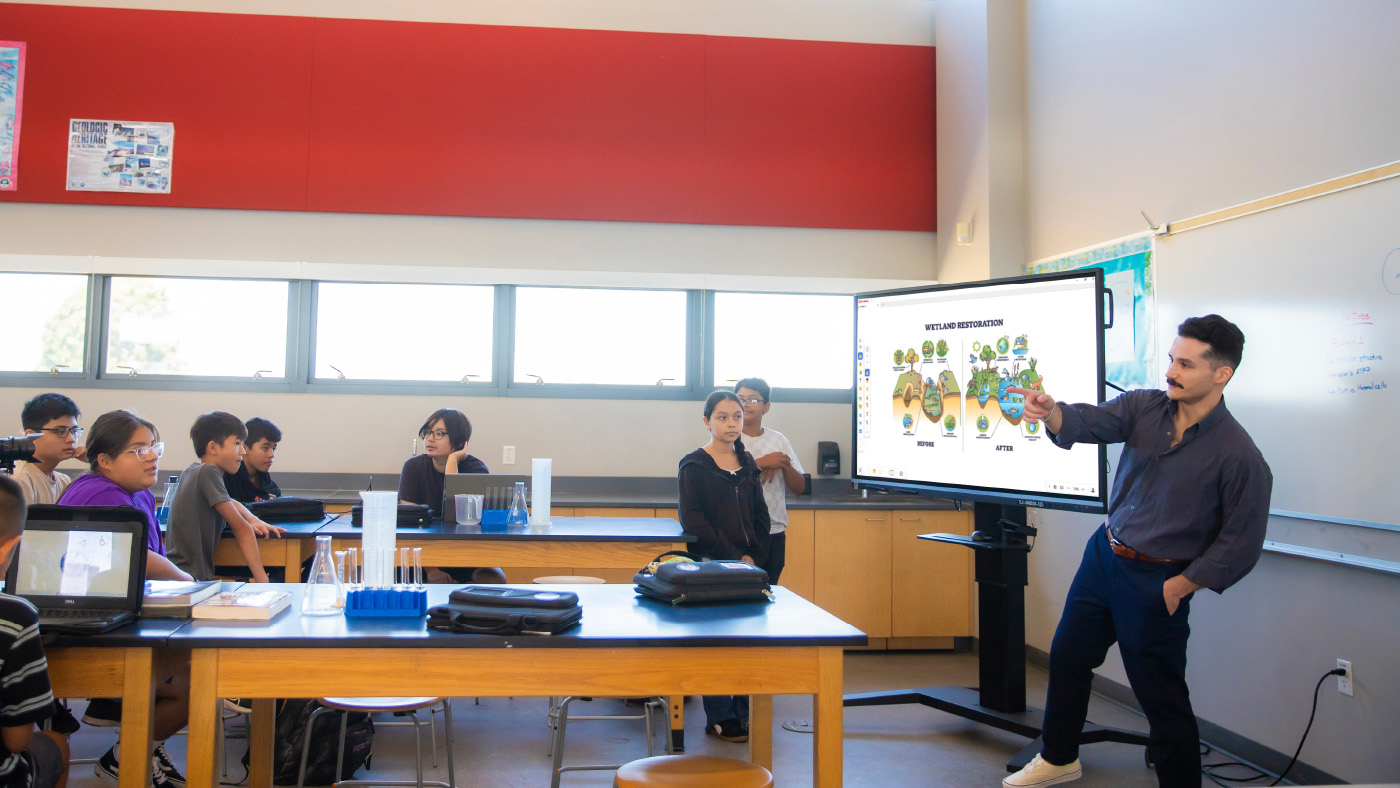
In classrooms, the ViewBoard IFP51 series of interactive displays gives teachers multi-touch recognition, digital annotation and easy content sharing. The IFP51 series of interactive displays is Android EDLA-certified with EPEAT Silver and ENERGY STAR 8.0 ratings, backed by a 3-year limited on-site warranty.

The district made the 75” IFP7551 its standard setup with 455 units, adding 65” and 86” models for specific room layouts.

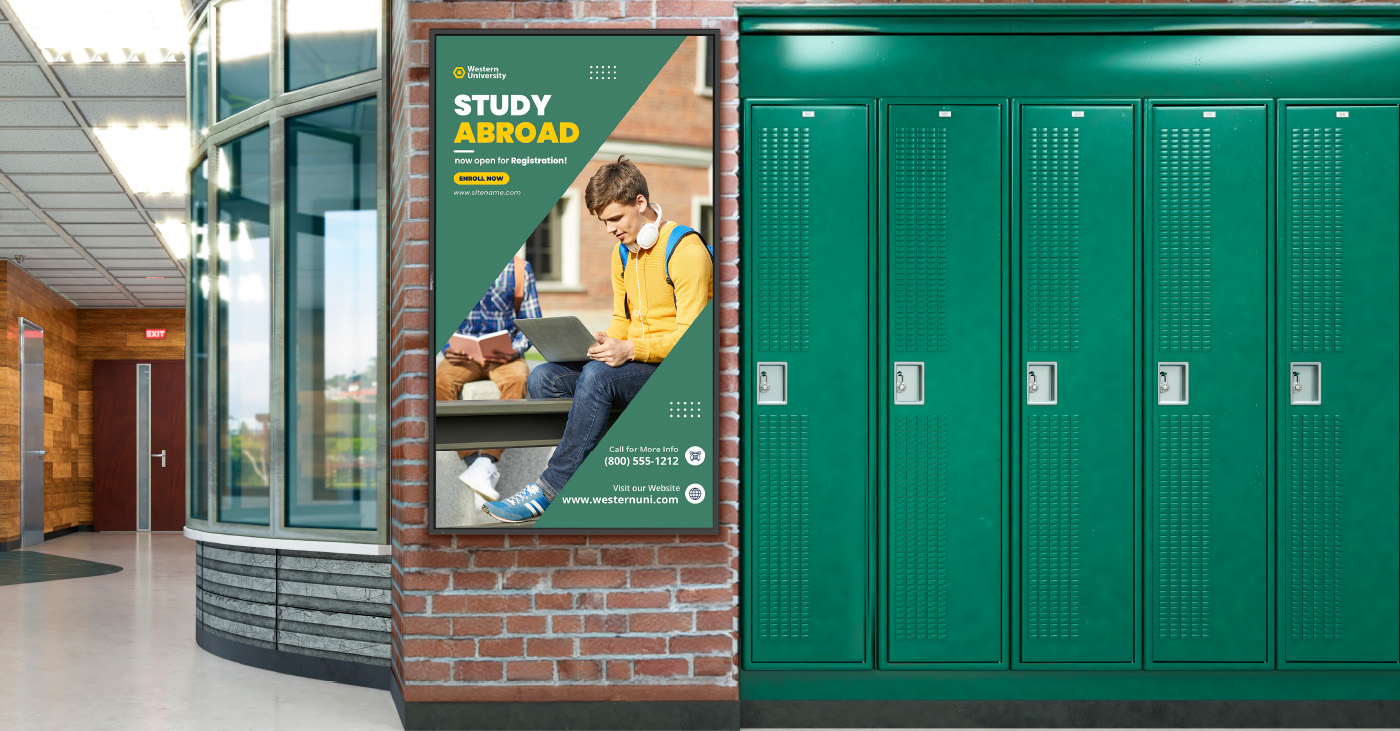
In shared spaces, the CDE series of commercial displays handles digital signage, daily announcements and event notices in busy hallways. Each display in the CDE series runs 4K UHD visuals at 500-nit brightness and is rated for 24/7 continuous operation.

Because both interactive and commercial displays share one ecosystem, IT handles all hardware through the exact same workflow.

How Does the District Manage Displays Across Multiple Schools?

ViewSonic Manager Advanced software gives the IT department a single dashboard to run the entire fleet. From central offices, technicians can broadcast content instantly, push firmware updates without walking into classrooms and schedule screens to turn off when buildings are empty, cutting energy bills.

ViewSonic’s displays tie directly into emergency alert systems, so critical messages reach classrooms and hallways immediately. That turns everyday communication tools into a core part of district security.

What Results Has the District Seen?

Standardized 520 displays across multiple schools, putting 489 ViewBoard interactive displays in classrooms and 31 CDE commercial displays in common areas.

  • Improved classroom interaction with responsive touch tech that supports group learning.
  • Built a unified digital communication network using CDE commercial displays in high-traffic spots.
  • Simplified deployment, staff training and tech support by using one ecosystem everywhere.
  • Lowered operating expenses and boosted campus safety with remote management, automated power schedules and instant emergency alerts.

Teachers got intuitive tools for lesson delivery, while administrators secured a direct channel for campus announcements. Standardizing on one platform made planning, deployment and training easier for IT.

With ViewSonic Manager Advanced software bringing together safety alerts, energy savings and remote updates, the district now has a flexible tech base built for future growth.

SOLUTION

65” IFP6551 ViewBoard interactive display

75” IFP7551 ViewBoard interactive display

86” IFP8651 ViewBoard interactive display

55” CDE5531 commercial display

65” CDE6531 commercial display

75” CDE7531 commercial display

ViewSonic Manager software

Frequently Asked Questions


How Can a School District Standardize Displays for Both Classrooms and Campus Communications?

A single manufacturer ecosystem can cover both needs: interactive displays for teaching and commercial displays for digital signage, managed from one software platform. This district deployed ViewBoard interactive displays in classrooms and CDE commercial displays in common spaces, managing everything with Manager Advanced software.


What ViewBoard Sizes Work for K-12 Classrooms?

The ViewBoard IFP51 series of interactive displays comes in 65” (IFP6551), 75” (IFP7551) and 86” (IFP8651) sizes, all offering 4K resolution and Android EDLA certification. This district installed 489 ViewBoard interactive displays, standardizing on the 75” IFP7551 while using 65” and 86” models for specific room sizes.


Can School Displays Connect to Emergency Alert Systems?

Yes. Manager Advanced software, ViewBoard interactive displays and the CDE series of commercial displays integrate with emergency systems so urgent safety notices hit every screen instantly.


How Does Centralized Display Management Save a District Money?

ViewSonic Manager Advanced software lets IT admins automate power off schedules when schools are empty, push remote updates and broadcast messages across campus from one console. Automated power management cuts electric bills, while remote admin tools reduce support trips and staff hours.


Ready to Modernize Your District’s Displays?

Talk to a ViewSonic representative or an authorized partner about standardizing classrooms and campus communications on ViewBoard interactive displays, CDE commercial displays and ViewSonic Manager Advanced software.


Training outcomes and participant experiences may vary depending on individual needs, district requirements, and implementation. Performance, security, compliance, and sustainability outcomes may vary depending on system configuration, usage environment, and agency requirements.

Complete Guide to Dual-Screen Portable Monitors | ViewSonic

Complete Guide to Dual-Screen Portable Monitors

A dual-screen portable monitor is a foldable external display with two built-in screens that expands a laptop into a multi-monitor setup.

This solution is useful for business travel, remote work, coding, presentations, financial workflows, content review or any task that would benefit from keeping multiple windows visible at once. The best models are easy to carry, connect through USB-C, support multiple viewing modes and clearly explain device compatibility.

In this guide, we’ll break down how dual-screen displays boost productivity, key features to look for, real-world setups for mobile work and more.

We’ll also explain why the ViewSonic® VG1457 is one of our top picks for a dual-screen portable monitor.

What Is a Dual-Screen Portable Monitor?

A dual-screen portable monitor is a single unit that folds open to reveal two separate screens, usually connected by a center hinge. That sets it apart from two other common setups people often mix up:

A single portable monitor adds one extra screen to a laptop. It’s a lighter, simpler setup than a dual-screen unit, and a solid fit for anyone who just needs one extra screen rather than a full three-screen workspace.

A laptop screen extender (the kind that clips onto the back of a laptop lid) adds a second screen physically connected to the laptop.

Because it’s tied to the laptop’s exact screen size, it can’t fold flat for travel the way a standalone dual-screen unit does. Most extenders rely on adhesive mounts, which make them a semi-permanent fit for one laptop rather than something you move easily between devices.

They also add weight directly onto the laptop and often need multiple cables depending on the laptop’s connectivity.

Dual-Screen Portable Monitor Use Cases

Business Travelers

Business travelers want an easy way to boost productivity no matter where work takes them. But when you’re constantly on the go, every extra charger becomes one more thing you have to carry around.

The ViewSonic VG1457 portable monitor solves this with an ultra-lightweight design with 65W two-way USB-C Power Delivery. Its dual 14-inch WUXGA screens give you an expanded workspace that requires just a single power source.

Hybrid and Remote Workers

Hybrid and remote workers frequently move between home, office desks and temporary workspaces, meaning they don’t always have an ideal setup. A dual-screen portable monitor gives them an instant multi-screen layout for emails, documents and spreadsheets, then folds flat to travel with them when work is over.

Sales, Customer Success and Field Teams

For sales, customer success and field teams, a dual-screen portable monitor simplifies client interactions and call management. Reps can compare quotes and specs side by side, or keep CRM notes visible on a second screen during a presentation. On the VG1457, Share mode turns the screens outward so two people sitting across a table can view the same content simultaneously.

Developers, Analysts and Finance Professionals

Financial analysts and developers rely heavily on multi-monitor setups, but lose that efficiency when working away from their main setup. A dual-screen portable display restores that multi-window workspace for professionals on the go.

Instead of constantly cycling through overlapping windows, they can keep key tools visible side by side, running code next to a live preview, keeping spreadsheets alongside dashboards or referencing documentation next to a terminal.

Creators and Review Workflows

For creators in the field, a dual-screen portable monitor works well as a secondary workspace for reviewing footage, referencing notes and scripts or keeping tool panels open next to a timeline.

If color grading, high brightness or OLED-level color performance is the priority, ViewSonic’s single-screen portable OLED monitors (like the VP16-OLED and VX1655-4K-OLED) are worth looking into.

Why Choose a Dual-Screen Portable Monitor?

A dual-screen portable monitor solves a simple problem: one laptop screen isn’t enough for serious multitasking. Here’s what two screens make possible.

    Desktop-level productivity anywhere: Bring a true multi-monitor workflow on the go instead of downsizing to a single extra display.

    An expanded canvas: Combine two panels into one larger workspace for deep-focus tasks.

    Face-to-face sharing: Present across a table in Share mode without crowding around a single screen.

    Two inputs, one unit: Run two separate devices side by side at the same time.

Features of a Dual-Screen Portable Monitor

A few setup details determine whether a dual-screen portable monitor will work with a given laptop or phone.

USB-C DisplayPort Alt Mode: This lets a single USB-C port carry a video signal, not just data and charging. It’s what most USB-C monitors, portable or otherwise, rely on to receive a picture from a laptop. Your laptop or phone needs a USB-C port that specifically supports DisplayPort Alt Mode for this to work, since not every USB-C port does.

USB-C Power Delivery: Power flows through that same cable, in either direction. That two-way flow means the cable can pull power from a laptop or power bank to run the monitor, or pass power the other way to charge the laptop when the monitor is plugged into an outlet. On the VG1457, dual USB-C inputs support 65W two-way Power Delivery.

HDMI vs. USB-C: HDMI carries video only, so a monitor that relies on HDMI alone needs a separate power cable. Some portable monitors offer HDMI as a fallback for laptops that don’t support DisplayPort Alt Mode over USB-C.

Drivers vs. Plug-and-Play: A plug-and-play monitor works the moment it’s connected. Others need drivers installed first, which adds setup time and depends on OS compatibility.

MST Limitations: MST (Multi-Stream Transport) is the technology that lets a single video output drive more than one display. This feature is unavailable on macOS and mobile devices due to MST limitations over USB-C. Only the lower display activates when extending on these devices.

Power Source: Options include a connected laptop, a wall adapter or a power bank with enough wattage to run the unit.

Display Modes Explained

Different portable monitors can offer different display modes. Here are some of the most popular ones explained.

Mirror Mode

Mirror mode shows the same content on the laptop and the monitor. It’s the simplest mode to set up and works well for demos, training sessions or presentations where separate windows on each screen aren’t necessary.

Extend Mode

Extend mode treats the monitor’s screen space as additional desktop rather than a duplicate of the laptop screen. On a dual-screen unit like the VG1457, that means the two panels function as extended workspace alongside the laptop, which is the mode most people reach for when multitasking is the goal.

Not every device can extend content across both screens of a dual-screen monitor because of MST limitations.

Dual-screen Extend mode isn’t available on macOS or mobile devices for the VG1457, since macOS doesn’t support MST via USB-C. Only the lower display activates when extending on those devices. Windows laptops generally handle it without issue, though MST support can still vary by specific hardware.

Full-Screen Mode

Full-Screen mode is different from Extend mode in one important way. Instead of treating the two panels as separate extended space, it merges them into a single continuous area. On the VG1457, that means both 14-inch panels combine into one 19-inch workspace, which works well for work that benefits from one larger screen rather than two adjacent windows.

Share Mode

Share mode turns the screens outward so two people can view them from opposite sides at once. It’s built for client meetings, interviews and small-group reviews, where someone needs to show something to a person across a table rather than share their own screen. In Share mode, the VG1457 uses a built-in G-sensor to auto-rotate the upper display, so its orientation adjusts automatically for the person on that side.

Dual Source Mode

Dual Source mode uses two independent USB-C ports to run two separate devices on screen at the same time. Whether that’s pairing a laptop with a smartphone or managing two laptops on one desk, it provides users with a live side-by-side view without juggling cables or input toggles.

Dual-Screen Portable Monitor vs. Single Portable Monitor

Feature Single Portable Monitor Dual-Screen Portable Monitor
Best For Streamlined single-screen focus Multi-window power workflows
Portability Lightweight, single monitor Two panels in one slim, foldable unit
Presentation Use Good for solo demos, one screen to share Better for two-person viewing via Share mode
Workflow Fit Great for quick tasks and multitasking Best for deep multitasking and side-by-side work
Ideal Users Anyone who just needs one extra screen Business travelers, remote workers, analysts, coders, creators

Not sure which fits your workflow? Browse the full lineup of ViewSonic portable monitors, including single-screen options, to compare.

What to Look For in a Dual-Screen Portable Monitor

Screen Size and Resolution

Screen sizes on dual-screen units are typically dual 14-inch panels, like the VG1457’s dual 14-inch WUXGA displays, though single 14-inch and 15.6-inch models are common in the single-screen category.

Aspect ratio is almost as important as screen size. A 16:10 panel gives more vertical space than a standard 16:9 panel, which matters for reading documents, scrolling spreadsheets or following code top to bottom. WUXGA resolution (1920 x 1200) is the 16:10 counterpart to Full HD, with extra vertical pixels that come from the taller aspect ratio rather than a wider one.

The VG1457's 16:10 panels also pair cleanly with newer 16:10 laptops for a matching aspect ratio.

Weight and Thickness

Dual-screen monitors naturally add size, making total weight and thickness key considerations before buying. A practical setup needs to stay thin enough to slide into a bag alongside your laptop without taking over the whole compartment.

USB-C Power Delivery

Power Delivery over USB-C cuts down on cable clutter and eliminates the need to pack extra wall chargers. The most versatile monitors feature two-way power, meaning you can charge your laptop through the display when plugged into an outlet, or run the screens off your laptop battery when working away from a plug.

Compatibility

Before buying, check compatibility across Windows, macOS and mobile devices, along with USB-C Alt Mode support, MST limitations, HDMI fallback options and whether drivers or software are required. This is one of the most common sources of buyer frustration with portable monitors, since a unit that works perfectly on one laptop can behave differently on another.

Display Modes

Confirm the monitor actually supports the modes you need: Mirror, Extend, Full-Screen, Share and Dual Source. Not every portable monitor offers all five, and naming can vary by brand, so check the specs of the model you’re considering. The VG1457 does offer all five modes.

Ergonomics and Orientation

Hinge range, tilt, orientation and auto-pivot support can all affect how comfortable the monitor is to use day to day.

The VG1457 lists specific swivel, pivot and tilt ranges, including a 340-degree hinge for Share mode, and supports ViewSonic Display Portal and vDisplay Manager software for auto-pivot control, which automatically switches the display into portrait orientation when needed.

When a Dual-Screen Portable Monitor May Not Be the Right Choice

A dual-screen portable monitor is built for expansive productivity. It may not be the right fit if:

  • You only need one extra display, not two.
  • You do color-critical creative work that needs OLED or higher brightness than most dual-screen portable panels offer.
  • You want to play games and require a higher refresh rate.
  • Your device doesn’t support the USB-C display output the monitor requires.
  • You’re on a Mac or mobile device and expect full dual-screen Extend mode, which runs into MST limitations on those platforms.
  • You want one seamless larger screen instead of two hinged panels.
  • You want a wireless connection instead of a wired USB-C setup.

ViewSonic’s portable OLED monitors are designed for exceptional color accuracy. ViewSonic’s portable gaming monitors, like the 144Hz VX1754, can help players work hard and play harder on the go.

Want one continuous screen instead of two hinged panels? That same 17-inch VX1754 delivers a single larger display in a similarly portable design.

And for a cable-free setup, the VG1656N pairs a 16-inch display with built-in wireless casting, so you can skip the USB-C connection altogether.

How to Set Up a Dual-Screen Portable Monitor

Portable monitor setup varies between devices, but the sequence is largely the same across brands.

Step 1: Check your laptop ports. Confirm your laptop’s USB-C port supports DisplayPort Alt Mode, not just charging and data. This is the single most common reason why a portable monitor won’t display a picture.

Step 2: Connect power. Depending on the monitor, you can run it from the laptop itself, a wall adapter or a power bank rated for enough wattage.

Step 3: Choose your display mode. Pick Mirror, Extend, Full-Screen or Dual Source in the on-screen display (OSD) menu.

Step 4: Adjust orientation. Select landscape or portrait manually or enable auto-pivot using vDisplay Manager (downloadable from the ViewSonic Display Portal). Auto-pivot automatically rotates your display based on screen content and physical monitor position.

Step 5: Arrange displays in your OS. On Windows, use Display Settings to arrange screen order and orientation. On macOS, check for the Extend mode limitations covered above before assuming both screens will behave like an extended desktop. On mobile, confirm the device supports external display output at all before connecting.

Troubleshooting: Why Is My Portable Monitor Not Detected?

If a USB-C portable monitor isn’t detected, work through these steps in order:

  1. Confirm the USB-C cable supports video, not just charging or data. Not every USB-C cable does.
  2. Confirm the laptop’s USB-C port supports DisplayPort Alt Mode.
  3. Connect external power if the monitor needs it to turn on.
  4. Check for MST limitations if you’re trying to extend across two screens rather than mirror.
  5. Select the correct input on the monitor if it has more than one.
  6. Check your operating system’s display settings to confirm the second screen is recognized.
  7. Update firmware or software tools if the manufacturer provides them.
  8. Confirm a power bank is rated to deliver enough wattage if that’s your power source.

Why the ViewSonic VG1457 Is Built for Mobile Productivity

The VG1457 is ViewSonic’s first portable dual-screen monitor, built around the idea that a single laptop screen shouldn’t be the ceiling for productivity.

Two 14-inch WUXGA displays fold into a 2.6-lb setup that fits in a laptop bag, and open into 19 inches of combined viewing space in Full-Screen mode.

Five viewing modes cover everything from solo focused work to a face-to-face client presentation: Mirror, Extend, Full-Screen, Share and Dual Source. Two independent USB-C inputs mean separate devices can each run on their own screen at the same time.

A single USB-C cable handles the rest of the setup. 65W two-way Power Delivery keeps a connected laptop charged while both screens run, or lets the laptop power the monitor directly when there’s no outlet nearby. Connect over USB-C and both screens come on in seconds, with no drivers or software installation required.

The VG1457 ships with a protective sleeve case, includes dual built-in speakers and is backed by an industry-leading three-year limited warranty.

Frequently Asked Questions

What is a dual-screen portable monitor? A dual-screen portable monitor is a foldable external display with two built-in screens that connects to a laptop, usually over USB-C, to add a multi-window workspace without a full desktop setup.

Are dual-screen portable monitors worth it? For anyone accustomed to a dual-display setup, yes. Coders, analysts, field teams and hybrid workers can see an immediate benefit simply by keeping critical reference documents, spreadsheets and emails open side by side.

Can a dual-screen portable monitor replace a desktop setup? For daily work, hot-desking and remote setups, yes. It gives you the full workspace of a dual-monitor desk setup wherever you choose to work, making it easy to handle spreadsheets, coding, video calls and heavy multitasking without feeling cramped.

Do dual-screen portable monitors work with MacBooks? Yes, but Extend mode across both screens is limited on macOS due to MST limitations. Mirror mode and single-screen usage typically work without issue.

Why does dual-screen Extend mode not always work on macOS? Extending a single video signal across two separate screens depends on MST (Multi-Stream Transport) support, which macOS handles differently than Windows. On monitors like the VG1457, only the lower display activates when extending on macOS or mobile devices.

Can I use a dual-screen portable monitor with two devices? Yes, monitors that support Dual Source mode let two separate devices each run on their own screen at the same time, which is useful for comparing systems or working from two laptops.

Do I need drivers for a dual-screen portable monitor? Not for a plug-and-play model. The ViewSonic VG1457, for example, connects over USB-C with no drivers or software installation required.

What is the best dual-screen portable monitor for business travel? Look for an ultralight device, a protective case, USB-C Power Delivery and a single-cable setup. The ViewSonic VG1457 weighs 2.6 lbs, ships with a protective sleeve case and runs on 65W two-way USB-C Power Delivery.

What is the difference between Mirror, Extend, Share, Full-Screen and Dual Source modes? Mirror duplicates the laptop screen. Extend adds workspace across both panels where supported. Full-Screen merges both panels into one larger screen instead of two separate windows. Share turns the screens outward for two-person viewing. Dual Source connects two separate devices at once, one per screen.

Why is my USB-C portable monitor not detected? The most common causes are a USB-C cable that doesn’t support video, a laptop port that doesn’t support DisplayPort Alt Mode or a monitor that needs external power to turn on. Working through each of these usually resolves it.

Is OLED better than IPS for portable monitors? It depends on the job. OLED panels, such as ViewSonic’s OLED portable monitors, generally offer deeper black levels and wider color coverage, which matters for color-critical creative work. IPS panels are typically lighter, less expensive and well suited to general productivity.

What cable do I need for a dual-screen portable monitor? You’ll need a full-featured USB-C cable that supports video output (DisplayPort Alt Mode), not just standard charging. If you plan to pass power through the monitor to charge your laptop, check the cable’s wattage rating too. USB-C cables are rated in fixed tiers, typically 60W or 100W, so a monitor drawing up to 65W (like the VG1457) needs a cable rated for at least 100W to deliver its full Power Delivery.

Eye care and ergonomic features are designed to help reduce potential discomfort during extended viewing, but individual experiences may vary. Any references to third-party hardware, operating systems, software platforms, or corporate trademarks are for identification and compatibility purposes only and do not imply endorsement, affiliation, or sponsorship by their respective owners.

How a Commuter Rail Agency Captures More Rider Attention with ViewSonic Direct View LED Displays

SOLUTION BRIEF

How a Commuter Rail Agency Captures More Rider Attention with ViewSonic Direct View LED Displays

line drawing of a circular mazeline drawing of a circular maze
  • Static posters weren’t capturing riders’ attention the way the agency wanted.


“The agency can switch out creative in seconds and run multiple ads in rotation, maximizing the revenue potential of station walls. Advertisers gain higher visibility, while the agency eliminates paper waste and manual labor.”


CHALLENGE

A major U.S. commuter rail agency needed a better way to display advertising across its stations. Station walls are filled with ads meant to grab the attention of daily commuters, but the messaging needed to be big and bold to work.

The agency’s previous setup fell short. Printed wall posters, no matter how well designed, weren’t catching riders’ eyes. They needed signage captivating enough to hold attention in a busy station.

The solution was a bigger, brighter, dynamic display. The agency set its sights on a large-format Direct View LED (dvLED) video wall that could turn static ad spots into high-impact visual experiences.

What ViewSonic Solution Did They Choose?

  • 3 ViewSonic® 136” LDM136-151C All-in-One Direct View LED displays

Partnering with CDW, the agency chose three ViewSonic LDM136-151C displays.

Because each 136-inch All-in-One display ships under a single part number, everything needed for setup arrived in one package. That made specifying, buying and installing straightforward. ViewSonic won out over alternative options by offering the right balance of size, brightness and overall value.

ViewSonic’s dvLED technology was ideal for the busy station environment. A seamless Full HD picture with 600 nits of brightness and a 10,000:1 contrast ratio keeps ads crisp under harsh lighting. For durability, Chip-on-Board (COB) technology brings IP54 dust resistance and IK08 impact protection to heavy foot-traffic areas.

Maintenance stays simple as well, thanks to front-serviceable LED modules and a control bar that detaches to mount up to 30 feet away.

Why is a Direct View LED Display a Strong Fit for Station Advertising?

Paper posters lock stations into fixed messages that demand time-consuming reprints to update.

A 136” dvLED display transforms that same wall space into a bright, dynamic visual footprint. The agency can switch out creative in seconds and run multiple ads in rotation, maximizing the revenue potential of station walls. Advertisers gain higher visibility, while the agency eliminates paper waste and manual labor.

What Outcomes Does the Agency Expect?

  • A bigger, bolder ad display that captures rider attention where static posters failed to generate traction.
  • More impactful placements for advertisers shifting from printed posters to large, bright LED displays.
  • A durable, low-maintenance solution built for busy public stations, featuring IP54 dust and moisture resistance, IK08 impact protection, front- serviceable modules and 100,000-hour rated LEDs.

SOLUTION


Drywall alone is not a structural mounting surface and must never be used as the sole means of support; proper wall suitability, structural reinforcement, load-bearing capacity, and professional installation using commercial-grade mounting hardware are the sole responsibility of the customer, installer, or system integrator. ViewSonic assumes no liability for equipment damage, property damage, or personal injury resulting from incorrect installation or failure to comply with local codes. Performance, security, compliance, and sustainability outcomes may vary depending on agency requirements and environmental factors.

How a School District in Oregon Standardized 600+ Classroom and Campus Displays on a Single ViewSonic Platform

SOLUTION BRIEF

How a School District in Oregon Standardized 600+ Classroom and Campus Displays on a Single ViewSonic Platform

line drawing of a circular mazeline drawing of a circular maze
  • An Oregon district needed to replace outdated projectors and consolidate several legacy display brands onto one standardized platform.


“ViewSonic won on display size, functionality, product lineup breadth across interactive and commercial displays and centralized management.”


CHALLENGE

An Oregon school district secured voter-approved bond funding to replace its aging classroom displays. Many rooms relied on legacy projectors with frustrating wiring, while other spaces used a mix of piecemeal visual tools.

Teachers couldn’t count on a consistent experience from room to room, which created extra work for IT staff. Managing the old hardware wasn’t efficient either, since technicians had to stand directly in front of each display to push basic updates.

The district needed a unified strategy to standardize hardware across classrooms, offices and common spaces. Leaders wanted a partner that could support clear digital signage in hallways and cafeterias while offering centralized remote management for hundreds of endpoints.

What ViewSonic Solution Did the District Deploy?

The district deployed:

  • 461 ViewBoard® IFP8651 (86”) and 46 IFP6551 (65”) interactive displays.
  • 7 CDE8631 (86”), 71 CDE7531 (75”) and 39 CDE5531 (55”) commercial displays for signage.
  • ViewSonic Manager Advanced™ software 5-year licenses (MVBM_ADV_5Y01) for centralized management of touch and non-touch displays.

The rollout standardizes nearly every classroom on 86” ViewBoard IFP8651 interactive displays, using 65” IFP6551 units in specialty spaces. Offices and staff areas were upgraded from an originally planned 65” to 86” as well.

ViewSonic commercial displays are going into hallways, select offices and cafeterias for digital signage, replacing a mix of legacy brands and static USB setups.

The district manages the whole setup through ViewSonic Manager Advanced software, which pushes firmware updates and digital content across interactive and commercial displays from a secure, cloud-based dashboard.

Why Did the District Choose ViewSonic Over Other Display Brands?

The district ran a head-to-head comparison between ViewSonic and other display brands. ViewSonic won on display size, functionality, product lineup breadth across interactive and commercial displays and centralized management.

Using ViewSonic’s Manager Advanced software to manage touch and non-touch hardware means IT staff no longer have to walk up to individual displays just to update firmware.

What Results Has the District Seen?

  • Replaced outdated projectors and troublesome wiring with a standardized, streamlined display environment across the district.
  • Consolidated four to five legacy display brands into a single, uniform ViewSonic platform across classrooms and common areas.
  • Standardized on one management platform, Manager Advanced software, for both interactive and commercial displays.

Installation is underway across all schools in the district, and early feedback from the technology team has been positive.

Consolidating multiple aging setups onto a single ViewSonic platform simplifies day-to-day management for IT while giving teachers and students a consistent experience everywhere on campus.

SOLUTION

86” IFP8651 ViewBoard interactive display

65” IFP6551 ViewBoard interactive display

86” CDE8631 commercial display

75” CDE7531 commercial display

55” CDE5531 commercial display

ViewSonic Manager Advanced software

Frequently Asked Questions


How Can a School District Standardize Classroom and Campus Displays on One Platform?

A single manufacturer that builds both interactive and commercial displays lets a district standardize classrooms, offices and signage on one platform. This Oregon district deployed 600+ ViewSonic displays, using ViewBoard interactive displays in classrooms and the CDE series of commercial displays for signage, all managed through Manager Advanced software.


Can One Platform Manage Both Interactive and Non-Interactive Displays?

Yes. ViewSonic Manager Advanced software manages ViewBoard interactive displays and the CDE series of commercial displays from one cloud console. Manager Advanced is a licensed upgrade to the free Manager software, adding automated job scheduling, multimedia broadcast and remote desktop access. IT can push firmware updates and digital content across touch and non-touch displays without visiting individual rooms, cutting down the support time legacy hardware required.


Why Replace Classroom Projectors With Interactive Displays?

Projectors bring outdated wiring, dimming lamps and inconsistent room setups. This district replaced projectors district-wide with 86” ViewBoard IFP8651 interactive displays, standardizing nearly every classroom on one bright, wireless-friendly solution instead of an aging patchwork.


How Do Districts Fund a District-Wide Display Refresh?

Many districts use voter-approved bond funding for capital technology investments like classroom displays. This Oregon district secured a bond to modernize technology across schools, replacing projectors and multiple legacy brands with a single standardized ViewSonic platform across 600-plus displays.


Ready to Standardize Your District’s Displays?

Talk to a ViewSonic representative or an authorized partner about standardizing classrooms and campus signage on ViewBoard interactive displays, the CDE series of commercial displays and Manager Advanced software.


Training outcomes and participant experiences may vary depending on individual needs, district requirements, and implementation.

How a South Carolina District Swapped Discontinued Displays for ViewSonic ViewBoard Interactive Displays

SOLUTION BRIEF

How a South Carolina District Swapped Discontinued Displays for ViewSonic ViewBoard Interactive Displays

line drawing of a circular mazeline drawing of a circular maze
  • A school district needed a replacement for its 500 interactive displays that had started failing.


“The myViewBoard® ecosystem changed how educators teach. Instead of being left idle, digital whiteboarding tools and the ability to import lesson plans meant that ViewSonic displays saw daily usage during lessons.”


CHALLENGE

This South Carolina district invested in roughly 500 interactive displays from a previous vendor in 2021 and 2022, expecting them to last five years under warranty. Instead, the hardware started failing rapidly in year three.

To make matters worse, the vendor exited the interactive display market entirely, leaving the technology director with no official path for repairs or replacements.

IT admins had to convince the school board to reinvest in a dependable district-wide replacement much sooner than planned.

The district turned to its integration partner, which recommended the ViewSonic® ViewBoard® IFP50 and IFP51 series of interactive displays as the most cost-effective and reliable answer.

The IFP50 and IFP51 series both feature a stunning 4K touchscreen and access to ViewSonic’s award-winning myViewBoard software. The IFP51 series goes a step further with Android™ EDLA certification, unlocking verified Play Store access and a wider range of Google Mobile Services-compatible apps for teachers to bring into the classroom.

Because the district was reinvesting early, the evaluation focused on two requirements: the new setup had to be budget-friendly, and it had to last.

Several neighboring districts were already using ViewSonic solutions through the same partner. After a trial run and on-site demos, the district decided to move forward with ViewSonic

What ViewSonic Solution Did the District Deploy?

The district’s integration partner had a strong track record of placing ViewSonic hardware across South Carolina, making it a natural choice to replace the failing displays.

Success stories from nearby schools helped reassure the board during the evaluation process.

The district deployed a complete hardware and software package:

  • 445 75” ViewBoard® IFP50 4K interactive displays, including 210 IFP7550 models and 235 IFP7551 models.
  • ViewSonic Manager Advanced™ software with a 7-year license, one per display.
  • A 7-year ViewSonic® extended limited warranty that protects the entire investment.

The rollout spanned two generations of ViewSonic’s ViewBoard interactive displays. The district began in 2025 with the IFP7550. When that model reached end-of-life the following year, the district moved to its successor, the IFP7551, for the remaining displays.

ViewSonic honored the original pricing on its newer models, so the district was able to finish its rollout without going over budget.

Why Did the District Choose ViewSonic Over the Incumbent Platform?

Price and reliability drove the decision, but the 7-year warranty sealed the deal. After watching its previous fleet break down early with zero manufacturer support, the district wanted a partner that would stand behind its hardware.

That warranty proved reliability as much as it offered peace of mind.

Software made a big difference too. Teachers found the old displays clunky, often using them as nothing more than glorified projectors. The myViewBoard® ecosystem changed how educators teach. Instead of being left idle, digital whiteboarding tools and the ability to import lesson plans meant that ViewSonic displays saw daily usage during lessons.

What Results Has the District Seen?

  • 445 ViewBoard displays were deployed to replace the failing incumbent fleet, starting with 210 IFP7550 units in June 2025 followed by 235 IFP7551 units.
  • The district secured a reliable, feature-rich platform backed by a 7-year limited warranty.
  • IT administrators gained fleet-wide remote control using Manager Advanced, solving the management gaps they had with previous displays.
  • Classroom adoption jumped as teachers stopped using screens as basic projectors and started using the myViewBoard whiteboard and Google Drive lesson imports daily.

ViewSonic proved more reliable, affordable and feature-rich than the platform it replaced. The district plans to keep using year-end funds to finish outfitting roughly 850 classrooms as budget permits.

SOLUTION

75” IFP7550 ViewBoard interactive displays

75” IFP7551 ViewBoard interactive displays (EDLA‑certified)

ViewSonic Manager advanced software

7-year ViewSonic extended warranty

Frequently Asked Questions


What Happens When an Interactive Display Vendor Discontinues Its Displays?

Districts can get stuck with failing hardware and no support path, which is exactly what happened here when the old fleet hit end-of-life early. Choosing a manufacturer committed to the interactive display market with long warranty terms protects your investment. This district made the switch with a full 7-year warranty.


What Software Comes with the IFP50 and IFP51 Series of ViewBoard Interactive Displays?

Both series include access to the myViewBoard ecosystem. This ecosystem includes myViewBoard whiteboard, ViewBoard Cast for wireless content sharing and single sign-on access to cloud storage like Google Drive and OneDrive. Teachers can import existing lesson plans directly, driving everyday classroom adoption.

The IFP51 series adds Android EDLA certification, giving IT teams verified access to the Google Play Store and a wider range of Google Mobile Servicescompatible apps.


How Do School Districts Manage a Large Fleet of Interactive Displays?

ViewSonic Manager Advanced provides a cloud console that lets IT teams check display health, push updates and manage apps across the district from one place. Licensing it one-to-one across all 445 screens closed a major management gap for this district.


How Long Is the Warranty on ViewSonic ViewBoard Interactive Displays?

The ViewBoard IFP50 and IFP51 series of interactive displays comes with an industry-leading 3-year standard on-site warranty covering parts, labor and backlight components. The district chose to extend coverage to 7 years on all 445 displays.


Ready to Replace an Aging or Discontinued IFP Fleet?

Talk to a ViewSonic representative or an authorized partner about a reliable, cost-effective ViewBoard refresh backed by long-term warranty protection and fleet management.


Training outcomes and participant experiences may vary depending on individual needs, district requirements, and implementation.

How a Large Texas District Started a Multi-Phase ViewBoard Interactive Display Rollout with Secure Sign-On

SOLUTION BRIEF

How a Large Texas District Started a Multi-Phase ViewBoard Interactive Display Rollout with Secure Sign-On

line drawing of a circular mazeline drawing of a circular maze
  • A large Texas district needed a secure, centrally managed display solution for its multi-classroom rollout.


“ViewSonic covered every requirement, and validating NFC authentication up front proved the solution met the district’s strict security standards.”


CHALLENGE

A large urban school district in Texas set out to modernize classroom technology across all its schools. The project started with 451 interactive displays in phase one, with plans to expand into thousands of additional classrooms later.

The district didn’t just need hardware. It required a complete solution that fit its Chrome and Google ecosystem, offered secure authentication for staff and students, provided mounting flexibility for different room layouts and enabled central fleet management.

Security was a top priority, especially around validating how badge authentication would work right at the display.

The timing for this project was also tight. Everything had to be sourced, shipped to multiple locations and delivered before a strict fiscal year-end deadline, requiring precise coordination with channel partners.

What ViewSonic Solution Did the District Deploy?

Working with CDW as its reseller partner, the district deployed a complete classroom technology package:

  • 451 ViewBoard® IFP8641 86” 4K Android EDLA interactive displays.
  • 451 VPC13-C33-G1 Chromebox OPS slot-in PCs built for Chrome OS and Google environments.
  • 481 VB-BLM-002 BalanceBox height-adjustable mounts, including extra units for existing displays.
  • 451 ViewSonic® Manager Advanced software 7-year licenses for central fleet management.
  • 451 NFC card readers for secure sign-on

The 86” ViewBoard IFP8641 anchored each room, VPC13-C33-G1 Chromebox OPS devices matched the district’s Google setup while NFC card readers gave teachers a fast, secure way to sign in at the display. VB-BLM-002 BalanceBox mounts allowed staff to set displays at the right height for every classroom.

The IFP8641 fit the district’s requirements on its own specs: an 86” 4K display with Android EDLA certification, built-in Google security, native access to Google and Microsoft ecosystems, EPEAT Silver and ENERGY STAR 8.0 ratings and a 3-year limited on-site warranty.

ViewSonic Manager Advanced software tied the whole setup together, giving IT central monitoring across every building. Before finalizing the deal, ViewSonic worked directly with the district to validate NFC functionality, resolving its primary security concern.

ViewSonic and its reseller partner coordinated a multi-location delivery plan to ensure all 451 displays and accessories arrived before the district’s fiscal yearend deadline.

Why Did the District Choose ViewSonic?

The district needed one manufacturer that could supply interactive displays, Chrome computing, secure authentication and central management as a complete package, delivered at scale on a tight deadline.

ViewSonic covered every requirement, and validating NFC authentication up front proved the solution met the district’s strict security standards.

ViewSonic’s reseller partner coordinated pricing, ordering and multi-location logistics, letting the district run a large, time-sensitive rollout through a single reseller relationship.

What Results Has the District Seen?

  • Deployed 451 interactive displays across the district on time to hit a strict fiscal year-end deadline.
  • Enabled secure sign-on at the display using NFC card readers, validated before purchase to meet security requirements.
  • Integrated Chrome OS computing into classrooms using Chromebox OPS devices.
  • Centralized fleet management through Manager Advanced software so IT supports every location from one platform.
  • Established a proven standard ready to expand across thousands of additional classrooms in future phases.

Phase one gave the district a secure, centrally managed display platform delivered on schedule. It also created a clear blueprint for the future: with the standard proven, the district and its partners can easily expand the same setup to thousands of other classrooms.

SOLUTION

86” IFP8641 ViewBoard interactive display

VPC13-C33-G1 Chromebox OPS slot-in PC

VB-BLM-002 BalanceBox mount

ViewSonic Manager Advanced software

ACR1552U-M1 NFC card reader

Frequently Asked Questions


How Does NFC Authentication Work on an Interactive Display?

NFC authentication lets users tap a card or badge on a reader at the display to sign in securely without typing passwords. This district added NFC card readers to its ViewBoard deployment so staff could sign on quickly and get started teaching faster.


Can Interactive Displays Run in a Chrome and Google Environment?

Yes. A Chromebox OPS device like the ViewSonic VPC13-C33-G1 turns a ViewBoard interactive display into a Chrome OS endpoint that fits into Google environments. This district paired all 451 IFP8641 displays with VPC13-C33-G1 devices so classrooms matched its existing setup.


How Does a District Manage Hundreds or Thousands of Interactive Displays?

Manager Advanced software is a cloud platform that lets IT teams check status, push updates and manage displays across every school from one dashboard. The district licensed Manager Advanced software for all 451 displays. This made the growing fleet easier to manage from one platform.


Can a District Roll Out Interactive Displays in Phases?

Yes. A phased rollout lets a district standardize on one platform, test it in real classrooms and expand with confidence. This district deployed 451 interactive displays in phase one and is ready to roll out the same setup across thousands of additional classrooms in upcoming phases.


Ready to Plan a District-Wide Display Rollout?

Talk to a ViewSonic representative or an authorized partner about standardizing interactive displays, Chrome computing, secure authentication and central management across your district.

Related Links

*The ACR1552U-M1 NFC card reader is third-party hardware (not a ViewSonic product), so it is named as deployed but not linked.

Performance, security, compliance, and sustainability outcomes may vary depending on system configuration, usage environment, and agency requirements. Training outcomes and participant experiences may vary depending on individual needs, district requirements, and implementation.

How Kentucky’s Largest College System Modernized Learning Spaces with ViewSonic

SOLUTION BRIEF

How a Pennsylvania School District Streamlined Campus Communications with ViewSonic

line drawing of a circular mazeline drawing of a circular maze
  • A 16-campus system needed a scalable display solution to replace decade-old classroom technology.


“By matching display technology to what each room actually needed, the integration partner and ViewSonic helped the school modernize its learning environments with a consistent, future-ready tech setup that balances performance, usability and overall value.”


CHALLENGE

Edtech funding is getting tighter, so higher education institutions have to carefully evaluate which solutions deliver the best value.

Across this 16-campus system serving 70,000+ students, many classrooms relied on technology that was over a decade old. Modernizing these spaces wasn’t optional if the institution wanted to support student recruitment, retention and engagement in a competitive landscape.

The institution needed a partner with a broad portfolio spanning interactive touch displays, commercial displays, Direct View LED video walls, monitors and projectors.

That way, it could match the right technology to each environment rather than force one solution everywhere.

As the system renovated and expanded its classrooms and event spaces, ViewSonic became a preferred partner for its reliable hardware and collaboration tools.

What ViewSonic Solution Did the Institution Deploy?

The institution’s integration partner worked with ViewSonic to build a standardized, scalable display strategy matched to each learning environment

  • 169 ViewBoard® interactive displays went into traditional instructional classrooms, giving faculty an intuitive platform for annotation, wireless content sharing and interactive lessons.
  • 6 ViewSonic® commercial displays were installed in lecture halls, auditoriums and assembly spaces to provide commercial-grade performance, integrate with third-party AV control platforms and run reliably in high-use environments.
  • 2 ViewSonic Direct View LED (dvLED) video walls were placed in spaces for maximum visual impact, delivering seamless, high-brightness images for large audiences.
  • 100 ViewSonic LCD monitors, 18 projectors and 5 ePoster displays were placed in across offices, labs, podiums and campus common spaces.
  • ViewSonic Manager Advanced software provided centralized, multi-campus device management.

By matching display technology to what each room actually needed, the integration partner and ViewSonic helped the school modernize its learning environments with a consistent, future-ready tech setup that balances performance, usability and overall value.

How Does the Institution Manage Displays Across 16 Campuses?

To get the most out of its investment, the institution uses ViewSonic Manager Advanced software to monitor and manage compatible devices across all campuses from one central dashboard. IT admins don’t have to travel to individual classrooms to deploy firmware updates, configure device settings, troubleshoot issues or schedule power on and off times.

Centralized management cuts operational costs, reduces classroom downtime and can extend device lifespan through proactive maintenance. This type of device management can also improve energy efficiency by making sure displays aren’t running when they’re not needed.

What Results Has the Institution Seen?

  • The institution replaced decade-old classroom tech with a standardized visual platform of 370 ViewSonic devices across 16 campuses, including 169 interactive displays, 76 commercial displays, 100 monitors, 18 projectors, 5 ePosters and 2 Direct View LED displays.
  • It lowered its total cost of ownership through centralized management, proactive maintenance and scheduled power controls.
  • IT staff can now support more classrooms across multiple campuses with fewer on-site resources.

SOLUTION

ViewSonic ViewBoard interactive displays

ViewSonic commercial displays

ViewSonic Direct View LED (dvLED) displays

ViewSonic LCD monitors

ViewSonic ePoster displays

ViewSonic Manager Advanced software

Frequently Asked Questions


How Should a University Match Display Types to Different Learning Spaces?

A proven approach uses interactive displays in instructional classrooms where faculty annotate and share content on the fly, commercial displays in lecture halls and auditoriums that need AV control integration, and Direct View LED video walls in large gathering spaces where brightness and scale matter most.

Kentucky’s largest public higher education system standardized on this strategy across 16 campuses with 370 devices, including 169 interactive displays, 76 commercial displays and 100 monitors.


How Do IT Teams Manage Displays Across a Multi-Campus Institution?

ViewSonic Manager Advanced lets IT admins remotely deploy firmware updates, configure settings, troubleshoot issues and schedule power on and off times from one console. That means fewer campus visits, less classroom downtime and displays that aren’t powered when they aren’t being used.


Do Interactive Displays Work for Career and Technical Programs, Not Just Lecture Classrooms?

Yes. This institution’s deployment spans nursing simulation labs, welding programs and traditional classrooms. Matching display types to each space’s function, rather than forcing a one-size-fits-all model, is what makes a multi-campus standard work.


How Do Display Choices Affect Total Cost of Ownership in Higher Education?

Total cost goes beyond the upfront price tag. Centralized management reduces on-site support trips, proactive maintenance extends device lifespan and scheduled power controls cut energy use.

This system paired standardized ViewSonic displays with Manager Advanced software to lower its total cost of ownership while supporting more classrooms with fewer resources.


Ready to Build a Campus-Wide Display Strategy?

Talk to a ViewSonic representative or an authorized partner about matching display technology to every learning space on your campus.


Drywall alone is not a structural mounting surface and must never be used as the sole means of support. Proper wall suitability, reinforcement, and the use of appropriate commercial-grade mounting hardware are the sole responsibility of the customer, installer, or system integrator. ViewSonic shall not be liable for any equipment damage, property damage, or personal injury, including death, caused as a result of incorrect installation, operation, human factors, or failure to comply with local codes. Training outcomes and participant experiences may vary depending on individual needs, district requirements, and implementation.

How to Choose Gaming Monitors for Schools

How to Choose
Gaming Monitors for Schools

Esports has become a real asset in K-12 and higher ed, helping students build college and career readiness, and the right monitor is where it all comes together. But the right gaming monitor for a middle school club looks a lot different from the one a college esports team needs. The good news is there’s a ViewSonic option for nearly every space, budget, and skill level.

This guide breaks down how to choose gaming monitors for schools based on the one thing that matters most: your scenario.

The short version: If you don’t have dedicated space, go portable. If you have a lab, choose by budget and competitive level. Entry-level competitive play starts at 180Hz, while dedicated esports programs benefit from 25-inch displays that reach 280Hz. Larger 27-inch screen sizes are great for more immersive gaming.

Start With Your Space, Not the Spec Sheet

It’s tempting to lead with refresh rates and screen sizes. But the smarter first question is simpler: where will these monitors live?

A program without a dedicated room has very different needs than one with a built-out lab. Once you know your space, the rest of the decision gets much easier. So let’s start there.

No Dedicated Space? You Have Options

Not every school has a room to spare for esports. The good news is you don’t need one to get started. There are two proven ways to build a program in shared or borrowed space.

Option 1: Go portable with a monitor cart.

The VX1654 (15.6 inches) and VX1754 (17.3 inches) are built to move. Both are Full HD IPS displays with a 144Hz refresh rate and AMD FreeSync, and both connect over a single USB-C cable that carries video, audio, and 60W of two-way power. At just 1.5 to 2 pounds and about as thin as a deck of cards, they slip right into a backpack or onto a cart. Pair a few with Nintendo Switch consoles and you’ve got a portable esports lab that rolls from room to room.

Portables are an underrated option in education. Many schools don’t think of them for gaming at all. But for programs without dedicated space, or with tight budgets, a portable setup is a creative and cost-effective way to launch esports without renovating a single room.

Option 2: Put the displays you already own to work.

If your classrooms have interactive flat panels, you may already have everything you need. That’s exactly how Fayette County Public Schools in Kentucky built the state’s first elementary esports program. Rather than buy new equipment, they leveraged their existing 75-inch ViewSonic ViewBoard displays, rolling cart-mounted panels into libraries and media centers to create pop-up esports lounges after school. Staff even packed “gamer backpacks” with everything students needed to connect, so a single plug turned any room into a ready-to-compete arena. The approach worked: the program grew from one pilot school to 41 schools in just two years, at no cost to participants.

The takeaway is simple. A big, vivid ViewBoard makes gameplay feel exciting on a screen the whole club can gather around, and it does double duty as an instruction tool by day and an esports arena after the bell.

Have a Dedicated Lab? Choose by Need

If you do have a dedicated space, the decision comes down to three things: your budget, the competitive level you’re aiming for, and how the lab will actually be used. Here are three tiers to consider.

Entry-Level Competitive: VX2418C and VX2428A

  • Refresh rate: 180Hz
  • Best for: schools that want solid gaming specs at a lower cost

Both 24-inch monitors hit a fast 180Hz refresh rate at a budget-friendly price. The VX2418C is a 1500R curved panel with a 1ms response time for an immersive feel, while the VX2428A uses a fast IPS panel with a 0.5ms response time and HDR10 support. Either one is a practical choice for labs that serve a wide range of students, from casual players to your competitive club.

Versatile Multi-Purpose: VX2730D-4K

  • Refresh rate: switchable between 144Hz at 4K and 288Hz at Full HD
  • Best for: labs that balance free play, classwork, video content, and competitive gaming

The VX2730D-4K is the chameleon of the lineup. Run it at 4K and 144Hz for immersive casual gaming, video, or general coursework. Then switch to Full HD at a blazing 288Hz when competitive play takes priority. It also has a 24.5-inch esports mode that shrinks the viewable area to the ideal competitive size, keeping the action in the player’s peripheral vision and reducing head movement. With AMD FreeSync Premium and NVIDIA G-Sync compatibility, it’s a true multi-purpose display that adapts to whatever the lab needs on any given day.

Ultra-Competitive: XG2536

  • Screen size: 25-inch display (24.5-inch viewable)
  • Refresh rate: 280Hz (overclocked)
  • Best for: dedicated esports programs focused on competitive play

When the goal is serious competition, the XG253 6 is built for it. The 24.5-inch viewable area sits at the ideal esports size, and the overclockable 280Hz refresh rate with a 0.5ms response time keeps fast action razor-smooth. It adds FreeSync Premium, G-Sync compatibility, RGB lighting, a narrow-footprint stand, and 65W USB-C charging, plus it connects to PCs and consoles alike, from PlayStation and Xbox to the Switch and Steam Deck.

From Amateur to Pro at a Glance

Not sure where to land? This simple framework is an easy starting point.

TIER

MODEL

WHAT YOU GET

BEST FOR

AMATEUR

VX2418C

24-inch, 1080p, 180Hz curved display at the best value

New clubs and casual play on a per-seat budget

COMPETITIVE

VX2728J-2K

27-inch, 1440p, 180Hz with advanced ergonomics

Growing programs that want sharper visuals and all-day comfort

PRO

XG2736-2K

27-inch, 1440p, 240Hz with USB-C and RGB

Established teams chasing every competitive edge


Each step up adds resolution, screen space, or speed, so match the tier to how seriously your program plays.

Compare ViewSonic Gaming Monitors for Education

Here’s the full lineup side by side.

MODEL

SIZE

WHAT YOU GET

MAX REFRESH RATE

BEST FOR

VX1654

15.6"

1080p

144Hz

Portable carts, no dedicated space

VX1754

17.3"

1080p

144Hz

A bigger screen for portable carts

VX2418C

24"

1080p (curved)

180Hz

Budget entry-level competitive

VX2428A

24"

 1080p

 180Hz

Budget entry-level competitive 

VX2728J-2K

27"

1440p 

 180Hz

Step-up sharpness and screen space

VX2730D-4K

27"

4K or 1080p 

 288Hz (at 1080p)

Multi-purpose: free play and competitive 

XG2536

25"

1080p 

 280Hz (OC)

Dedicated esports and pure speed

XG2736-2K

27"

 1440p

240Hz 

Top all-rounder: speed plus resolution

VX3218-PC-MHD

32"

 1080p

 180Hz

Large, immersive curved screen


How to Choose the Right Monitor Size

Screen size shapes the experience as much as refresh rate does. Here’s a quick guide to what works best where.

SIZE

BEST FOR

24 INCHES

The budget pick. Not perfect for any one thing, but a solid, affordable choice that still handles competitive play

25 INCHES

The competitive edge. The ideal esports size that keeps content in peripheral vision and minimizes head movement

27 INCHES

The versatile sweet spot. Not ideal for fast competitive genres like FPS and MOBA, but big enough for immersive RPGs and racing games

32 INCHES AND ABOVE

Built for immersion, plus fighting games where a bigger screen lets players gather around and play together


The VX2730D-4K deserves a special mention here. As a 27-inch monitor with a 24.5-inch esports mode, it bridges the gap between versatile sizing and competitive performance, which makes it a strong multi-purpose pick for labs that wear a lot of hats.

Common Questions About Gaming Monitors for Schools

What gaming monitor is best for a school with no dedicated space?

A portable monitor like the VX1654 or VX1754. Paired with a cart and consoles like the Nintendo Switch, it creates a mobile esports lab you can move between rooms.

What refresh rate do school esports programs need?

Entry-level competitive play works well at 180Hz. Dedicated esports teams benefit from higher rates, up to 280Hz on the XG2536, for the smoothest fast-paced gameplay.

What size monitor is best for esports?

About 25 inches is the sweet spot for competitive play. It keeps the action in the player’s peripheral vision and reduces head movement, which can make a real difference in fast games. We also offer a 27-inch model that features a 24.5-inch esports mode. This is a great dual-purpose option for computer labs.

Gaming Monitors Built With Education in Mind

ViewSonic designs gaming monitors with education in mind, balancing competitive performance, classroom versatility, and budget-conscious features across every product tier. Whether you’re rolling out a portable cart for a brand-new club or building a full esports arena, there’s a fit for your program.

Talk to a ViewSonic rep to find the right gaming monitors for your school.

Government Agency Speeds Field Office Setup With ViewSonic Portable Monitors

SOLUTION BRIEF

Government Agency Speeds Field Office Setup With ViewSonic Portable Monitors

Challenge

Employees at this government agency are regularly sent to sites of natural disasters to provide aid and support to affected victims. Setting up traditional field offices used to require trailers, office furniture, desktop computers, bulky monitors and standalone power generators.

These setups were expensive to transport, slow to assemble and tough to adjust when conditions changed quickly. The agency needed a lightweight, secure system that teams could set up in minutes without depending on heavy equipment or massive infrastructure. They needed enough screen space to handle communications, logistics, case management and planning without being weighed down.

Why Did This Agency Choose ViewSonic Portable Monitors?

The agency chose ViewSonic® portable monitors to help power its mobile office strategy. Instead of lugging around full desktop workstations, field personnel can travel light with laptop setups paired with portable monitors.

By trading trailers, generators and desktop workstations for ViewSonic portable monitors, this government agency can now deploy secure, fully functional field offices in minutes instead of hours, freeing personnel to focus on the mission instead of the setup.

What ViewSonic Solutions Did This Agency Deploy?

The agency deployed two ViewSonic portable monitor models across its field teams:

  • ViewSonic 14” VG1457 Dual-Screen Portable Monitor with 65W USB-C Power Delivery and Protective Case
  • ViewSonic 15.6” TD1655 Portable Touch Monitor with 60W USB-C Pass-Through Charging and Protective Cover

The VG1457’s dual 14” screens fold into a 2.6-lb setup that triples the amount of available screen space. Paired with a laptop’s own screen, the two folding panels bring the total workspace to three screens instead of one.

This means that field personnel get enough room to run maps, case files and communications side by side instead of toggling between windows on one screen.

Five display modes, including Extend, Share, Mirror, Full-Screen and Dual Source Mode, let a team member adjust the setup for solo case work, side-by-side briefings or other tasks in the field.

Two-way 65W USB-C power delivery lets the monitor draw power from a connected laptop or charge that laptop when an outlet is available. That flexibility can be helpful at disaster sites, where reliable power infrastructure is not always available.

For workstations that need more hands-on control, the agency deployed the TD1655 touchscreen monitor. Its touch capability lets staff interact directly with maps and software. It also offers 60W USB-C pass-through charging, which powers connected devices through one clean cable setup.

The compact design reduces overall equipment weight and speeds up setup during emergency response missions.

Results

  • Reduced dependence on heavy trailers, office furniture and bulky field equipment
  • Accelerated setup times for temporary field offices in disaster zones
  • Created a more flexible and mobile workforce during emergency operations
  • Simplified workstation setups through USB-C cables and built-in power delivery
  • Boosted user productivity using dual-screen and touchscreen setups
  • Cut transportation and logistical requirements for field operations

Switching to portable monitors changed how the agency sets up shop in emergency situations.

Teams now pack far less gear while keeping the full productivity of a multi-monitor office, letting them focus on relief efforts instead of building out workspace infrastructure.

*Performance, security, compliance, and sustainability outcomes may vary depending on system configuration, usage environment, and agency requirements.

Why Thunderbolt Monitors Future-Proof Your School

Why Thunderbolt Monitors
Future-Proof Your School

Every student and teacher on your campus has a device. But here’s the thing: those devices don’t all age at the same speed. Laptops take a beating and get replaced frequently. The monitor on the desk? It can easily outlast two or three rounds of laptops.

That gap is exactly why the display you buy today matters. A Thunderbolt monitor for schools is built to work with the laptops you have now and the ones you’ll buy later. Here’s why buying one now saves you money down the road.

The short version: Thunderbolt monitors are backward compatible with older Thunderbolt and USB-C devices and ready for new standards like USB4. So when you refresh your laptops, your monitors keep working. One display covers Mac labs, computer labs, and faculty desks alike.

Your Laptops and Monitors Don’t Age at the Same Rate

Most schools refresh student and teacher laptops frequently. There’s a good reason for that. Students aren’t gentle with their gear. Laptops get stuffed into backpacks, dropped in lockers, and opened and closed thousands of times. Hinges loosen, ports wear out, and screens crack.

It’s not just wear and tear, either. Plenty of students bring their own laptops, and no two are quite the same. You’ve got a wide range of brands, ages, and preferences plugging in across campus, so the monitors on your desks have to work with all of them, not just the machines you bought.

Monitors live an easier life. They sit on a desk. They don’t have hinges to break or get tossed around campus, so a quality monitor can keep going for years longer than the laptop in front of it.

That means it is a smart move to invest in a Thunderbolt monitor that can easily outlast the lifecycle of regular laptops or MacBooks. The smart move is to buy a monitor that won’t care which laptop you plug into it, this year or a few years from now.

What Makes a Thunderbolt Monitor Future-Proof?

A future-proof display has to do one job really well: connect to whatever device comes next. ViewSonic® Thunderbolt monitors are designed for exactly that.

Here’s what keeps them ready for the long haul:

  • Backward compatible. They work with Thunderbolt 3 and Thunderbolt 2 devices, so older MacBooks or laptops in your fleet aren’t left behind.
  • Universal connection. Any laptop with a video-capable Thunderbolt or USB-C port connects and works, Mac or Windows.
  • USB4 ready. They support USB4 protocols, so you’re prepared for the next wave of laptops and tablets.

Thunderbolt is an Intel-developed standard, which is part of why it plays so well across brands and generations. Whether your next purchase is a MacBook, a Windows laptop, or something that hasn’t launched yet, the monitor on the desk stays useful.

Better Specs That Keep Up with Demanding Work

Future-proofing isn’t only about ports. It’s also about performance that won’t feel dated in a year.

ViewSonic Thunderbolt monitors deliver higher specs and better resolution, with crisp 4K and 5K options for design, photo, and video work. They also support daisy chaining, so you can run dual 4K or 5K displays from a single connection. That’s a clean, cable-light setup for labs and studios, and it scales as your program grows.

One Monitor for Mac Labs and Computer Labs

A lot of campuses run mixed environments. The design department is on Macs. The library and general labs are on Windows. Buying different monitors for each is a headache and a budget drain.

Thunderbolt monitors work great in a Mac lab or a regular computer lab. The same display can sit in a creative arts studio and a general-purpose lab. That’s one product line, one thing to standardize on.

Meet the ViewSonic Thunderbolt Monitor Lineup

Four models in the ViewSonic ColorPro® VP series check every box for a future-proof campus. All of them connect to Mac and Windows devices over Thunderbolt and USB-C, and they share the same baseline features:

  • Thunderbolt 4 with 100W charging
  • Tested EDID for reliable plug-and-play recognition
  • Full DDC/CI support for ColorPro Display Manager
  • Pantone Validated color accuracy
  • 98% to 99% DCI-P3 coverage
  • Full ergonomic adjustments: height, tilt, swivel, and pivot
  • Built-in USB hub
  • Three-year limited warranty

The difference comes down to size, resolution, and docking features. Here’s how to pick the right one.

VP2788-5K: 27” 5K ColorPro Monitor

The VP2788-5K is the lineup’s sharpest display. At 218 PPI, its 5K panel matches the quality of a MacBook Pro screen, so everything stays consistent when students and faculty look between the two. It’s a natural fit for design and media labs, and dual 5K daisy chaining lets you run two of them from a single Thunderbolt cable.

  • Panel: 27-inch IPS, 5K (5120×2880), 218 PPI, 60Hz, and HDR400
  • Color: 99% DCI-P3, 100% sRGB, and Pantone Validated
  • Connectivity: Thunderbolt 4 with 100W power delivery, dual 5K daisy chain, HDMI, DisplayPort, and a USB hub

See the VP2788-5K


VP2488-4K: 24” 4K ColorPro Monitor

The VP2488-4K delivers strong pixel density without taking over the desk. At 24 inches and 184 PPI, it gives you sharp text and clean HiDPI scaling in a compact footprint. That makes it a great choice for libraries, shared workstations, and faculty offices. It supports dual 4K daisy chaining too, so you can wire two together from a single port.

  • Panel: 24-inch IPS, 4K (3840×2160), 184 PPI, and 60Hz
  • Color: 98% DCI-P3, 100% sRGB, and Pantone Validated
  • Connectivity: Thunderbolt 4 with 100W power delivery, dual 4K daisy chain, HDMI, DisplayPort, and a USB hub

See the VP2488-4K


VP2776T-4K: 27” 4K ColorPro Docking Monitor

The VP2776T-4K turns the monitor into a full single-cable docking station. Its built-in RJ45 Ethernet port routes a wired network connection straight through the Thunderbolt cable to the laptop, Mac or Windows. That means fewer adapters at every desk and no spotty Wi-Fi during video calls or large file uploads, which is ideal for busy labs and front-desk workstations.

  • Panel: 27-inch IPS, 4K (3840×2160), 60Hz, and HDR400
  • Color: 98% DCI-P3, 100% sRGB, and Pantone Validated
  • Connectivity: Thunderbolt 4 with 100W power delivery, RJ45 Ethernet, dual 4K daisy chain, HDMI 2.1, DisplayPort, USB hub, and dual speakers

See the VP2776T-4K


VP3276T-4K: 32” 4K ColorPro Docking Monitor

The VP3276T-4K gives editors, engineers, and designers serious screen real estate without adding to the cable clutter. The 32-inch 4K screen leaves plenty of room for long video timelines, layer panels, and side-by-side apps. Like the 27-inch docking model, it features RJ45 Ethernet and a full USB hub, so the whole desk connects through one cable.

  • Panel: 32-inch IPS, 4K (3840×2160), 60Hz, and HDR400
  • Color: 98% DCI-P3 and Pantone Validated
  • Connectivity: Thunderbolt 4 with 100W power delivery, RJ45 Ethernet, dual 4K daisy chain, HDMI, DisplayPort, USB hub, and VESA mounting See the VP3276T-4K

See the VP3276T-4K

Common Questions About Thunderbolt Monitors for Schools

Are Thunderbolt monitors backward compatible?

Yes. ViewSonic Thunderbolt monitors work with Thunderbolt 3 and Thunderbolt 2 devices, plus standard USB-C laptops. Older devices in your fleet will still connect.

Will a Thunderbolt monitor work with future laptops?

It should. These monitors support USB4 protocols, the foundation for upcoming Thunderbolt and USB-C devices, so they’re built to keep pace with new hardware.

Do they work with both Mac and Windows?

Yes. Thunderbolt is cross-platform, so one monitor serves Mac labs, Windows labs, and faculty offices equally well.

Future-Proof Your School With ViewSonic

Buying a Thunderbolt monitor now lets you spend once and stay ready for device refreshes. You get a display that works with today’s laptops, tomorrow’s laptops, and both Mac and Windows along the way.

Working with a tighter budget? We have other great monitors that can fit your needs too.

Talk to a ViewSonic rep to find the right displays for your campus.

How a Utility Company Replaced Three Cafeteria Displays with a ViewSonic 163” Direct View LED Video Wall

SOLUTION BRIEF

How a Utility Company Replaced Three Cafeteria Displays with a ViewSonic 163” Direct View LED Video Wall

Challenge

A major energy utility company needed a better way to stream daily updates in its main cafeteria, a high-traffic space built for nearly 750 employees.

Three smaller displays mounted on a track system split messaging across separate screens, making company updates hard to follow. At the same time, high ceilings, an open layout and sunlight from large windows created glare that washed out the displays during peak lunch hours.

The utility company needed a single large-format display that was readable from anywhere in the room.

There were other challenges as well. Floor space was off-limits for mounting gear because the room regularly fills to capacity, so hardware had to be mounted cleanly against the wall. To keep daily operations running, the organization needed a fast installation that didn’t require major construction or heavy scaffolding.

What ViewSonic Solution Did They Deploy?

Working with TSI Turtle, the utility company replaced its three-display setup with a single ViewSonic® 163” LDM163-182 All-in-One Direct View LED (dvLED) display. Pushing 600 nits of brightness, the display cuts through daylight so employees can read messaging clearly from any table.

The all-in-one design helped drastically simplify the installation process. With an ultra-slim design and durable Glue-on-Board (GOB) surface treatment that delivers an IP54 rating, the display sits flush on the wall while standing up to everyday bumps and spills. Because the detachable control bar can be placed behind the display or up to 30 feet away, the installers didn’t need floor-standing racks or extra room modifications.

Why Did the Utility Company Choose ViewSonic and How Fast Was the Deployment?

The utility company chose ViewSonic for its rapid turnaround capabilities and hands-on partner support. ViewSonic worked with TSI Turtle on the installation. A ViewSonic Solutions Engineer joined the crew on-site to further streamline the process.

Because power, processing and image stitching are built directly into the display hardware, the crew didn’t have to waste time wiring external control boxes or aligning separate panels.

What Results Has the Utility Company Seen?

  • Replaced three separate displays with one continuous 163” All-in-One LDM163-182 Direct View LED display for clear employee messaging.
  • A 600-nit display remains clear and legible, even during daylight hours.
  • Completed a clean, wall-mounted install without floor equipment.
  • Protected display hardware against public wear with IP54-rated surface protection.

Replacing split screens with a single dvLED video wall gave the utility company a professional, high-impact image for staff communications in its busiest shared space. 

Frequently Asked Questions

What Display Works Best in a Bright Cafeteria with Natural Light?

The ViewSonic LDM163-182 dvLED display delivers 600 nits of brightness, keeping visual content clear and readable across a naturally lit 746-capacity space.

Can a Large Video Wall Mount Without Floor Equipment or Extra Racks?

Yes. The LDM163-182 ships with a dedicated wall mount and features a detachable control bar that sits behind the display or up to 30 feet away, so there’s no need for floor-mounted racks that take up space.

Why Replace Multiple Small Displays with a Single All-in-One dvLED Display?

Multiple screens split content and create distracting bezel lines. A single 163” dvLED display offers one continuous surface, making messages easier to read while upgrading the overall look of shared employee areas.

How Quickly Can an All-in-One dvLED Video Wall Be Installed?

Because power, processing and image calibration are integrated into pre-configured panels, installation moves fast. This project went from purchase to a fully operational video wall without interrupting daily operations.

Ready to Upgrade Your Workplace Messaging?

Talk to a ViewSonic representative or an authorized partner like TSI Turtle about All-in-One dvLED displays for cafeterias, lobbies and employee communication spaces.

Related Products

Comparative claims are based on specific features and publicly available manufacturer specifications as of the date of publication, and are not intended to represent a comprehensive evaluation of all product attributes. Actual performance, compatibility, delivery schedules, network performance, training outcomes, and user results may vary depending on system configuration, network conditions, usage settings, individual needs, district or agency requirements, implementation conditions, environmental conditions, and other factors. Any references to third-party products, competitors, software platforms, hardware architectures, certification seals, control systems, or corporate trademarks are for identification, compatibility, and comparative reference purposes only and do not imply endorsement, affiliation, or sponsorship by their respective owners. Environmental protection ratings (including GOB, IP54, and IK06 ratings) are based on standard operating conditions; proper wall mounting, structural reinforcement, mobile assembly, freight handling, and professional installation are the sole responsibility of the customer or installer. ViewSonic assumes no liability for property damage or personal injury resulting from improper installation. Programs, pricing, specifications, and availability are subject to change or cancellation without notice. Corporate names and trademarks stated herein are the property of their respective companies. © 2026, ViewSonic Corporation. All rights reserved. 8/26 [26ALL-ENT1555Cc]

How a Maritime Defense Contractor Modernized Its Briefing Room with a ViewSonic 163” Direct View LED Display

SOLUTION BRIEF

How a Maritime Defense Contractor Modernized Its Briefing Room with a ViewSonic 163” Direct View LED Display

Challenge

A maritime defense contractor supporting U.S. military and naval operations uses a 52-foot by 32-foot briefing room for daily training, employee onboarding and presentations to visiting Navy leadership. However, its existing dual 85” displays couldn’t deliver the legibility or presence the large space required.

People seated near the back struggled to read detailed content, and high ambient light washed out the screens during daytime sessions. Hosting senior military personnel meant the room needed an executive-level visual upgrade.

At the same time, the project carried strict physical constraints. The hardware had to use existing power and network connections without disturbing decorative teak ceiling panels that would be costly and difficult to remove.

What ViewSonic Solution Did They Deploy?

The contractor deployed a single ViewSonic® 163” LDM163-182 All-in-One Direct View LED (dvLED) display. Delivering Full HD resolution at 600 nits of brightness, the display stays sharp and readable in high ambient light, ensuring even participants 30 feet away can read fine detail clearly.

The display also solved the room’s mounting challenges. Featuring an ultra-slim profile and an included wall mount, its detachable control bar can sit up to 30 feet away.

This setup allowed installers to connect directly to existing power and network infrastructure, leaving the decorative teak ceiling untouched. Guided by the ViewSonic Field Solutions team, the reseller partner completed the display deployment without interrupting daily operations.

Why Did the Contractor Choose a ViewSonic dvLED Display?

The relationship started the winter before, when the contractor installed ViewSonic’s 110” ViewBoard® interactive displays in another conference room. Seeing how well those screens performed gave the contractor full confidence to evaluate large-format dvLED options for its flagship briefing room.

The reseller partner priced out two options, comparing the 163” model against a larger 231” screen. The contractor chose the 163” LDM163-182 because it hit the target budget while supplying the size, brightness and impact required for senior leadership briefings.

What Results Has the Organization Seen?

  • Replaced two 85” displays with one seamless 163” dvLED video wall so participants can read text clearly from 30 feet away.
  • Maintained a sharp, high-contrast image with 600 nits of brightness that doesn’t wash out under daylight.
  • Created an executive-ready environment for briefings with Navy leadership and key stakeholders.
  • Completed a clean installation that reused existing infrastructure while preserving the decorative teak ceiling.

What started as a single room upgrade grew into a complete overhaul of its flagship briefing space. By switching to a unified dvLED solution, the contractor got a high-impact setup that doesn’t falter during critical defense presentations.

Frequently Asked Questions

What Display Works Best in a Large, Brightly Lit Conference or Briefing Room?

High-brightness dvLED displays keep content legible where standard screens wash out. The 163” ViewSonic LDM163-182 provides 600 nits of brightness, allowing participants in a 32-foot-deep room to read presentations clearly regardless of daylight.

How Large Should a Display Be for a Room Where the Back Row Is 30-Plus Feet Away?

In deep spaces, a single large-format video wall outperforms multi-screen setups. Replacing two 85” displays with one 163” dvLED video wall ensured clear visibility across a 52-foot-wide by 32-foot-deep layout.

Can a dvLED Video Wall Be Installed Without Major Construction or Ceiling Work?

Yes. The LDM163-182 uses an ultra-slim wall mount and a detachable control bar that can sit up to 30 feet away. This setup plugs directly into existing power and network lines, which preserved the decorative teak ceiling.

Why Choose an All-in-One dvLED Display Over a Projector or Tiled LCDs for an Executive Briefing Room?

All-in-One dvLED displays deliver a seamless image without bezel gaps or projector shadows. Because they ship as pre-configured units, they install faster and supply the sharp visual impact expected during military leadership briefings.

Ready to Modernize Your Briefing Room?

Talk to a ViewSonic representative or an authorized partner about All-in-One dvLED displays for briefing rooms, training spaces and executive environments.

Related Products

Comparative claims are based on specific features and publicly available manufacturer specifications as of the date of publication, and are not intended to represent a comprehensive evaluation of all product attributes. Actual performance, compatibility, delivery schedules, network performance, training outcomes, and user results may vary depending on system configuration, network conditions, usage settings, individual needs, district or agency requirements, implementation conditions, environmental conditions, and other factors. Any references to third-party products, competitors, software platforms, hardware architectures, certification seals, control systems, or corporate trademarks are for identification, compatibility, and comparative reference purposes only and do not imply endorsement, affiliation, or sponsorship by their respective owners. Environmental protection ratings (including GOB, IP54, and IK06 ratings) are based on standard operating conditions; proper wall mounting, structural reinforcement, mobile assembly, freight handling, and professional installation are the sole responsibility of the customer or installer. ViewSonic assumes no liability for property damage or personal injury resulting from improper installation. Programs, pricing, specifications, and availability are subject to change or cancellation without notice. Corporate names and trademarks stated herein are the property of their respective companies. © 2026, ViewSonic Corporation. All rights reserved. 8/26 [26ALL-ENT1555b]

How a Coworking Organization Standardized Multiple Locations with ViewSonic Commercial Displays

SOLUTION BRIEF

How a Coworking Organization Standardized Multiple Locations with ViewSonic Commercial Displays

Challenge

As one popular coworking organization expanded across the Western United States, managing a patchwork of display brands became a massive operational drain.

Every new space brought a mix of private offices, meeting rooms and event venues that needed screens.

But using multiple display manufacturers meant that every room worked differently, so that IT and its support partner had to handle separate software updates, control setups and support lines for each location.

To continue supporting its rapid growth, the organization couldn’t keep adding separate systems. It needed to consolidate onto one commercial display family and get a cloud management platform that would enable remote updates and device management.

What ViewSonic Solution Did They Deploy?

The organization worked with its integration partner to deploy 96 ViewSonic® CDE31 series of commercial displays across five sizes, ranging from 43 to 86 inches.

Standardizing on one display family gave every room the right screen size while keeping the core hardware identical. Each display features 4K UHD resolution, 500-nit brightness, a 24/7 operation rating, native RS-232 control and compatibility with Crestron, Extron and AMX, plus Q-SYS Library certification.

To further streamline operations, the organization added a 5-year ViewSonic Manager Advanced software license.

Manager Advanced builds on the free ViewSonic Manager platform with added automation and remote desktop access, giving the integration partner visibility across every site. This lets IT admins push software updates, monitor device health and resolve issues remotely without sending a technician on site.

What Results Has the Organization Seen?

  • Standardized 96 displays across multiple locations using a single commercial display line.
  • Centralized fleet monitoring and remote management through one cloud console.
  • Reduced maintenance demands by consolidating onto one manufacturer ecosystem.
  • Delivered a consistent user experience across huddle rooms, offices and event halls.
  • Created a scalable technology foundation to support future site expansions.

By replacing a mixed display setup with one unified ecosystem, the organization cut maintenance demands and gave members a reliable experience in every room.

Centralized oversight through Manager Advanced software lets its partner handle updates proactively, keeping workspace displays running without interrupting daily business.

Frequently Asked Questions

How Can a Multi-Location Business Standardize Its Displays Across Different Room Types?

Standardizing on one manufacturer’s commercial display line lets a business match screen size to each room while keeping software, controls and support identical. This organization deployed 96 ViewSonic CDE31 series of displays in five sizes, from 43” to 86”, across multiple locations to cover every space type.

How Do You Remotely Manage Commercial Displays Across Multiple Sites?

ViewSonic Manager offers free, web-based monitoring for every site. This organization added ViewSonic Manager Advanced, an upgraded tier that layers on automation, device profiles and remote desktop access. The upgrade centralizes device health, settings and software updates into a single cloud-based dashboard. IT teams and managed service partners can then manage displays at any location without physically being on site.

Do ViewSonic CDE31 Series Displays Integrate with AV Control Systems?

Yes. The CDE31 series of commercial displays feature native RS-232 control and Q-SYS Library certification. They’re also compatible with Crestron, Extron and AMX, making them easy to plug into existing room control environments.

Why Consolidate Onto a Single Display Manufacturer?

Consolidating onto one brand cuts maintenance complexity, simplifies procurement and ensures a consistent user experience across every room and location.

Ready to Standardize Your Workspace Technology?

Talk to a ViewSonic representative or an authorized partner about standardizing on CDE31 series of commercial displays and Manager Advanced across your locations.

Related Products

Comparative claims are based on specific features and publicly available manufacturer specifications as of the date of publication, and are not intended to represent a comprehensive evaluation of all product attributes. Actual performance, compatibility, delivery schedules, network performance, training outcomes, and user results may vary depending on system configuration, network conditions, usage settings, individual needs, district or agency requirements, implementation conditions, environmental conditions, and other factors. Any references to third-party products, competitors, software platforms, hardware architectures, certification seals, control systems, or corporate trademarks are for identification, compatibility, and comparative reference purposes only and do not imply endorsement, affiliation, or sponsorship by their respective owners. Environmental protection ratings (including GOB, IP54, and IK06 ratings) are based on standard operating conditions; proper wall mounting, structural reinforcement, mobile assembly, freight handling, and professional installation are the sole responsibility of the customer or installer. ViewSonic assumes no liability for property damage or personal injury resulting from improper installation. Programs, pricing, specifications, and availability are subject to change or cancellation without notice. Corporate names and trademarks stated herein are the property of their respective companies. © 2026, ViewSonic Corporation. All rights reserved. 8/26 [26ALL-ENT1555a]

How a Manufacturer Reduced Security Risks with ViewSonic’s OS-Free Interactive Displays

SOLUTION BRIEF

How a Manufacturer Reduced Security Risks with ViewSonic’s OS-Free Interactive Displays

Challenge

A U.S. metal manufacturer needed a large interactive display for teams to review plans, designs and presentations. Like most industrial firms, it treats every connected device as a security liability. Standard smart displays run an embedded operating system that IT has to constantly patch and protect. The manufacturer wanted touchscreen collaboration without exposing its network to extra intrusion risks.

What ViewSonic Solution Did the Manufacturer Deploy?

The manufacturer worked with integration partner Sidebarr to evaluate two ViewSonic® 86” 4K interactive displays, the standard ViewBoard® IFP8641 and the OS-free IFP86G1. While both provided ample screen space, the IFP86G1 reduced network risks by skipping the built-in operating system entirely.

Presenters simply plug in directly from their laptops. Without local storage or background software, sensitive files never touch the display and malware has nowhere to hide. Sidebarr recommended the IFP86G1 as the best overall value for its touchscreen performance, price point, solid warranty and U.S.-based support.

What Results Has the Manufacturer Seen?

  • Met both collaboration and security requirements with a single display.
  • Kept meeting data off the network by running presentations directly from user laptops.
  • Removed OS patching and software maintenance from IT’s workload.
  • Gave teams fast touch controls and annotation tools for daily plan reviews.

The manufacturer got a massive screen that makes reviewing designs easier while keeping network risk to a minimum. By omitting the built-in operating system, Sidebarr and ViewSonic turned a potential IT security burden into a seamless collaboration tool.

Frequently Asked Questions

What Is an OS-Free Interactive Display?

An OS-free display is a touchscreen with no built-in operating system. With the ViewSonic ViewBoard IFP86G1, users connect directly from their own device or add an optional slot-in PC. There’s no native software to update and no meeting data saved on the screen.

Are OS-Free Interactive Displays More Secure Than Standard Smart Displays?

They reduce risk in two key ways: there’s no embedded OS to exploit and no local storage for sensitive files. An OS-free display like the IFP86G1 leaves a much smaller attack surface than a traditional smart screen. This manufacturer picked it specifically to keep OS vulnerabilities off its network.

Does Removing the Operating System Reduce IT Maintenance?

Yes. Without an embedded OS, there are no software updates, patches or background programs to manage. Users run everything off their own laptops, which takes ongoing maintenance off IT’s workload.

Can Teams Still Collaborate and Use Touch on an OS-Free Display?

Yes. The IFP86G1 delivers fast multi-point touch and annotation for reviewing plans, files and presentations. Users get full interactivity from their connected device without storing any content on the display.

Ready to Collaborate Without the Operating System Risk?

Talk to a ViewSonic representative or an authorized partner like Sidebarr to learn more about OS-free ViewBoard interactive displays for secure teamwork.

Related Products

Comparative claims are based on specific features and publicly available manufacturer specifications as of the date of publication, and are not intended to represent a comprehensive evaluation of all product attributes. Actual performance, compatibility, delivery schedules, network performance, training outcomes, and user results may vary depending on system configuration, network conditions, usage settings, individual needs, district or agency requirements, implementation conditions, environmental conditions, and other factors. Any references to third-party products, competitors, software platforms, hardware architectures, certification seals, control systems, or corporate trademarks are for identification, compatibility, and comparative reference purposes only and do not imply endorsement, affiliation, or sponsorship by their respective owners. Environmental protection ratings (including GOB, IP54, and IK06 ratings) are based on standard operating conditions; proper wall mounting, structural reinforcement, mobile assembly, freight handling, and professional installation are the sole responsibility of the customer or installer. ViewSonic assumes no liability for property damage or personal injury resulting from improper installation. Programs, pricing, specifications, and availability are subject to change or cancellation without notice. Corporate names and trademarks stated herein are the property of their respective companies. © 2026, ViewSonic Corporation. All rights reserved. 8/26 [26ALL-ENT1555Cd]

Stop Tab-Switching: How Daisy Chaining Monitors Boosts School Productivity

BUYER'S GUIDE

Stop Tab-Switching:
How Daisy Chaining Monitors Boosts School Productivity

You know the feeling. You’re working on something important and you’ve got five tabs open, two windows overlapping and a document buried somewhere underneath it all. Every time you switch between them you lose your place, your focus and a little bit of your patience.

For teachers, staff and students, that’s not just an annoyance. It’s a productivity killer. And there’s a simple fix.

What Is Daisy Chaining?

Daisy chaining is a way of connecting multiple monitors in a sequence, where each display links to the next rather than running separate cables back to your laptop or docking station. Think of it like holiday lights. You plug the first strand into the wall, then connect each additional strand to the one before it. One source. Multiple displays. Clean and simple.

In a school setting, daisy chaining means you can set up a dual-monitor workstation with fewer cables, less clutter and a much cleaner desk.

Who Benefits from Daisy Chaining in Schools?

Across a school or university campus, daisy chaining multi-screen setup adds real value for just about everyone.

Students in Computer Labs

Students writing papers or working on research projects often need to reference multiple sources at once. Articles, PDFs, datasets and their own document all need to be visible at the same time. A dual-monitor setup lets them keep everything in view instead of constantly switching windows. That’s especially valuable during high-stakes work like dissertations or thesis projects. 

Faculty

Instructors work across a lot of tools simultaneously. LMS platforms, lecture slides, grading systems and student submissions all need attention at once. With two screens, a faculty member can build a lesson on one display while referencing content on the other, or review student work while entering grades in real time. No more toggling. No more losing your place.

Administrative Staff

Admin teams juggle calendars, spreadsheets, budgets and communications all day long. A multi-display setup lets them see a full week’s schedule on one screen and a budget spreadsheet on the other. It’s a simple change that improves accuracy and cuts down on the back-and-forth that slows planning down.

IT Teams

IT departments need visibility across multiple systems at once. Device dashboards, remote desktops, network tools and support tickets all compete for screen space. Daisy chaining supports a control room-style setup where system health, alerts and active sessions are all visible simultaneously. Less toggling means faster troubleshooting and fewer things slipping through the cracks.

Good, Better, Best: ViewSonic Daisy Chain Options

Not all daisy chain setups work the same way. ViewSonic offers options at every budget and performance level so schools can find the right fit.

Good: DisplayPort Daisy Chaining

For schools looking to maximize value, select ViewSonic monitors support daisy chaining via DisplayPort. Connect your laptop to the first monitor via USB-C and link the second monitor with a DisplayPort cable. It’s a cost-effective way to get a dual-screen setup without a major hardware investment. Keep in mind that USB ports on the second monitor won’t be active in this configuration unless you also utilize a USB A/B cable between the two monitors.

Better: USB-C Daisy Chaining

Our USB-C docking monitors take it a step further. Using USB-C port, you can connect your laptop with a single USB-C cable and daisy chain a second monitor also through a USB-C cable. No additional cable is needed to connect the USB ports on the second monitor. USB-C daisy chains also support up to 100W power delivery, so your laptop or student chromebooks charge at the same time.

Best: Thunderbolt Daisy Chaining

For schools running Macs or laptops with USB-C or Thunderbolt connectors, ViewSonic Thunderbolt monitors offer the highest level of performance and compatibility. Thunderbolt supports USB-C protocols, so they work with a wide range of Thunderbolt or USB-C devices. They deliver blazing-fast data transfer and powerful charging, and they’re built to stay relevant no matter what devices your school purchases down the road. They can also save your school money compared to premium alternatives like the Mac Studio setup.

More Visibility. Less Friction. Better Results.

The core value of a multi-display setup is simple. When users can see more at once, they switch less, focus more and get more done. Whether it’s a student finishing a thesis, a teacher building a lesson plan or an IT admin monitoring a network, two screens make the work easier.

ViewSonic makes it simple to get there, with flexible daisy chain options at every budget, clean single-cable setups and a full lineup of education monitors built for school environments.

Ready to find the right setup for your school?
Explore ViewSonic Education Monitors 

ViewSonic to Present its High-Impact Display Solutions to Public Procurement Professionals at the NIGP Forum 2026

The Company’s Display Solutions Enhance Methods and Encourage Agency Learning and Collaboration

COLUMBUS, OH (Aug. 23, 2026) NIGP 2026 – Booth 118 ViewSonic Corp., a leading global provider of visual and edtech solutions, showcases its display solutions at the NIGP Forum 2026, July 23 - 26, 2026. As state, local, and education markets grow, ViewSonic will highlight its All-in-One mobile Direct View LED solution and a multifunctional, interactive podium touch display. This is just a sampling of the company’s award-winning display solutions that will be at the booth for procurement professionals attending the Forum.

ViewSonic continues to deliver solutions that help transform spaces into next-generation environments that are immersive, interactive, and collaboration-ready. The ViewSonic All-in-One dvLED solutions are engineered to make large-scale display solutions more accessible. It ensures easy deployment, management, and scalability for various applications and real-world environments. The company’s multifunctional podium touch displays are designed to transform traditional podiums into dynamic, interactive presentation hubs. These podium displays help presenters stay connected with their audience while keeping content front and center. It can help expand learning spaces and boost productivity.

“ViewSonic is focused on delivering simplified solutions that can be used in various environments to promote communications, creativity, collaboration, and situational awareness” said Christopher Solomon, Senior Vertical Marketing Manager, Government at ViewSonic. “By showcasing the mobile dvLED solution along with the 4K podium display, we’re showing how display solutions can work in high-demand environments and providing answers to diverse public sector demands.”

NIGP PRODUCT HIGHLIGHTS:

LDS136-152 All-in-One Direct View mobile LED Display

  • 136-inch foldable screen pre-assembled in a protective flight case
  • New commercial grade built-in motorized stand provides an industry leading extra 3.7 feet of vertical adjustment
  • Integrated stand and display remote control allow management of both screen settings and motorized lift
  • I/O ports are more accessible and provide direct connectivity without opening panels or exposing internal boards
  • Glue-on-Board (GOB) Technology is designed to provide additional resistance to impact, dust, and moisture for an IP54 rating; IK06 rating for impact protection in heavy-use environments
  • Versatile connectivity includes HDMI (x4), HDMI output (x1), SPDIF and 3.5mm Audio Out, USB connectivity, WiFi Bluetooth, Ethernet, RS-232, and an OPS slot
  • Native 1080p (1920x1080) Full HD resolution, 600-nit brightness, 6,500:1 contrast ratio, and dual 30W speakers


ID2456-4K myPodium™ Touch Display

  • Multifunctional 24-inch touch display with native 4K Ultra HD resolution
  • 10-point Projected Capacitive (PCAP) touch technology supports simultaneous writing or drawing with styluses or fingers, with palm rejection technology
  • Supports 100% sRGB color for accurate color representation
  • Works with Microsoft Pen Protocol [MPP2.0] active pens to deliver precision and accuracy
  • The USB-C connectivity offers single-cable video, audio, and power, along with HDMI v2.0, and DisplayPort for screen mirroring or desktop extension, supporting seamless integration
  • Compatible with Windows, Android, Chrome, and macOS (via vTouch software), the display supports a wide range of devices and platforms
  • The sleek, bezel-less design allows it to easily become an extension for podiums without taking up extra room
  • Built-in kickstand adjusts from 15- to 70-degrees tilt for a comfortable viewing angle whether seated or standing; can also be mounted, offering flexibility for different room layouts


To find out more about ViewSonic, visit ViewSonic.com and follow on Facebook, YouTube, X and Instagram.


About ViewSonic

Founded in 1987 and headquartered in Brea, California, ViewSonic is a leading global provider of visual solutions for the education, business, and consumer markets, with a presence in over 100 countries. Driven by the mission to transform education, workplaces, and lives, the company delivers a unified ecosystem of innovative hardware, software, and services that integrates seamlessly with the platforms, tools, and partners customers trust. Its product portfolio includes monitors, projectors, interactive displays, LED displays, commercial displays, video conferencing systems, and industrial solutions. Complementing its hardware is a robust suite of software offerings—including myViewBoard®, ClassSwift®, TeamOne®, ViewSonic Manager™, and AirSync™—featuring AI-powered tools for collaboration, device optimization, and management. By empowering creativity, collaboration, and lifelong learning, ViewSonic supports customers at every stage in achieving their business and sustainability goals, creating a lasting impact and helping people everywhere connect with purpose—and See the Difference®. Learn more at www.viewsonic.com.

###

*Actual performance, compatibility, and user experience may vary depending on system configuration, network conditions, usage environment, and other factors. Features and specifications are subject to change without notice. This news release contains forward-looking statements that reflect the Company’s expectations with regard to future events. Actual events could differ significantly from those anticipated in this document. Trademark footnote: ViewSonic and the ViewSonic trademarks are trademarks or registered trademarks of ViewSonic Corporation in the United States and/or other countries. All other corporate names and trademarks stated herein are the property of their respective companies.


Media Contacts:

Joey Lee
JSL Marketing for ViewSonic [U.S.]
E: joey@jslcomm.com

Miranda Bravo
ViewSonic [U.S. & CA]
E: miranda.bravo@viewsonic.com

Nury Lavandier
ViewSonic [Latin America]
E: nury.lavandier@viewsonic.com
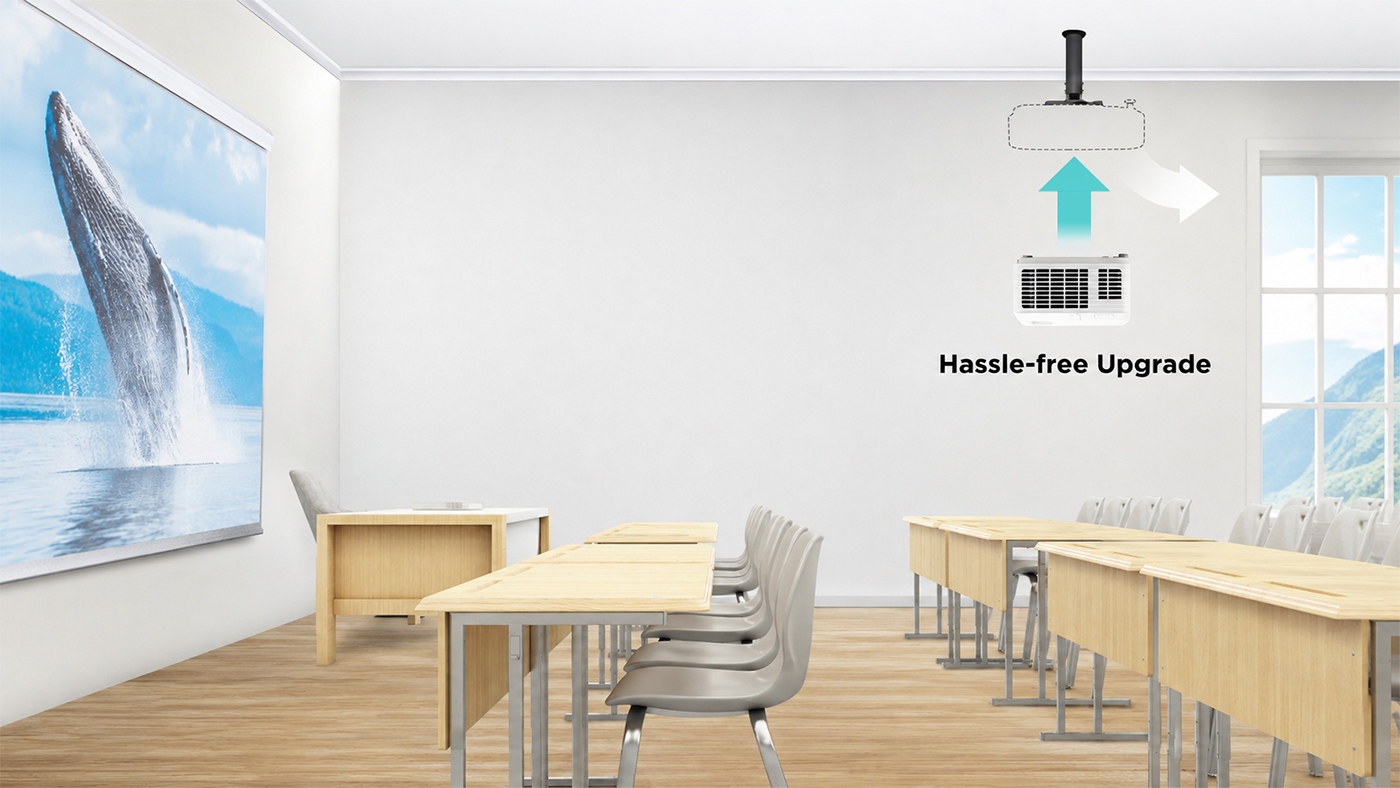
How California Correctional Facilities Are Modernizing Inmate Education and Behavioral Health with ViewSonic ViewBoard Displays

SOLUTION BRIEF

How California Correctional Facilities Are Modernizing Inmate Education and Behavioral Health with ViewSonic ViewBoard Displays

SCHOOL

Universidad Anáhuac Mayab, located in Mérida, Yucatán, in southeastern Mexico, is a private higher education institution with nearly 8,000 students from 27 countries. It is widely recognized for its academic excellence and forward-thinking educational approach, which is based on flexible programs and comprehensive learning environments that prepare highly qualified professionals.

Anáhuac is currently ranked among the top 2% of universities worldwide and among the top three private universities in Mexico. It is also one of the three universities with the highest graduate employability rates in the country. The university offers 30 undergraduate programs in a variety of fields. Among them is the Multimedia Design degree program, which contributes to the video game, animation, audiovisual production and digital design industries. These fields have experienced exponential growth in popularity and demand, becoming some of the most important multibillion-dollar sectors in the world.

Multimedia designers play a key role in developing and sustaining these industries by creating innovative, trend-driven digital design solutions. They are experts in managing and marketing digital projects, using specialized software for image, audio, and video editing, as well as 2D and 3D modeling and animation, digital publishing and application development.


CHALLENGE

line drawing of a circular mazeline drawing of a circular maze
  • Replace unsecure dry erase boards to improve instructional workspace.

California correctional facilities needed to replace wall-mounted dry erase boards that created security concerns and limited instructional workspace in training rooms and psychiatric units.


Classrooms, meeting rooms and clinical spaces inside a correctional environment support mission-critical work under strict safety and operational requirements. Staff running inmate programs needed an engaging way to deliver vocational training and academic diploma coursework. Psychiatric units needed a more effective method for reviewing patient progress, treatment plans and care coordination.


Before the deployment, many rooms relied on dry erase boards attached to the wall. Those boards offered limited writing space, required manual erasing and rewriting, and could not display digital content, training materials, schedules or care information. In secured environments, wall-mounted boards and loose accessories also introduced avoidable security concerns.


The replacement solution had to meet several requirements at once:

  • Support interactive instruction and digital content sharing
  • Support collaborative review sessions without adding complexity for instructors, program staff or clinical teams
  • Provide enough workspace for group-based learning and multidisciplinary care discussions
  • Reduce the wall-mounted boards and loose accessories that require oversight in a secured room


Why Did ViewSonic ViewBoard Displays Fit These Environments?


A 75-inch interactive panel changes what a secured room can support. The ViewSonic® ViewBoard® IFP7541 gives instructors, program facilitators and care teams a large shared canvas for presenting content, annotating information and guiding group discussions, with more room to work than a traditional dry erase board.


Multi-touch functionality makes training sessions more participatory. myViewBoard software adds the digital whiteboarding tools staff use to prepare, present, annotate and save instructional or meeting content.


The VPC35 slot-in PC addresses the room itself. It adds a full Windows computing experience directly to compatible ViewBoard displays, which reduces the need for separate external computers or loose cabling in shared spaces.


What ViewSonic Solution Did They Deploy?


The facilities deployed ViewBoard IFP7541 interactive flat panels to create digital teaching and collaboration spaces serving both instructional and clinical workflows:

  • ViewSonic ViewBoard IFP7541: a 75-inch 4K UHD interactive flat panel display with multi-touch capability, used as the primary interactive teaching and collaboration surface in classrooms and psychiatric units
  • ViewSonic VPC35 slot-in PC: an OPS-compatible slot-in PC that adds an integrated Windows computing experience to the ViewBoard display, reducing external computers and loose cabling in shared rooms
  • myViewBoard: ViewSonic’s digital whiteboarding software for preparing, presenting, annotating and saving lessons, meeting notes and care-coordination content


What Does the Deployment Look Like?


Each room pairs one IFP7541 with a VPC35 slot-in PC, so the computing sits inside the display rather than alongside it. That supports cleaner room setups and reduces the external computers and loose cabling that require oversight in a secured space.


The same configuration serves both program areas. In education spaces it supports vocational lessons, academic diploma coursework, diagrams, step-by-step demonstrations and interactive review. In psychiatric units it supports patient progress reviews, treatment planning discussions and structured care coordination meetings.


What Results Have the Facilities Seen?


  • Reduced reliance on fixed dry erase boards in secured rooms, helping address security concerns tied to traditional wall-mounted writing surfaces
  • Expanded usable instructional workspace from a static board to a 75-inch interactive 4K digital canvas
  • Enabled inmate training programs to present, annotate and revisit vocational and academic diploma materials more efficiently
  • Gave psychiatric units a shared digital workspace for reviewing patient progress, care plans and team notes during care coordination sessions
  • Supported cleaner room setups by pairing each interactive display with an integrated slot-in PC rather than a separate external computer


Replacing fixed dry erase boards gave the facilities a more flexible platform for training and care management. Instructors present digital course content, annotate directly on screen and work in a larger visual space to support vocational instruction and academic diploma completion.


In psychiatric units, multidisciplinary teams centralize patient progress discussions on a shared display, which makes it easier to review information together and align on next steps during care meetings. The deployment answers the original operational requirement: a safer alternative to wall-mounted dry erase boards that could also improve learning and care coordination.


LogoLogo

“The upgrade solved daily reliability issues while expanding how the facility operates. Choosing a mobile dvLED screen gave every room in the event center access to high-impact visual capabilities.”


— Zeus Borges, Coordinator of the Multimedia Design Program

SOLUTION

line drawing of a jigsaw puzzle pieceline drawing of a jigsaw puzzle piece
  • ViewBoard® IFP7541: 75-inch 4K interactive flat panel

  • VPC35: Slot-in PC

  • myViewBoard®: Digital whiteboarding software

This year, students in the eighth semester of the Multimedia Design program were responsible for creating the projection mapping animation, which was displayed on square structures using 360° imagery.

ViewSonic equipped the festival with four LS740HD projectors, which deliver 5,000 ANSI lumens and feature lamp-free, third-generation laser phosphor technology to ensure bright and vivid images. They can also project Full HD 1080p images at sizes of up to 300 inches. The LS740HD features 1.3X optical zoom, horizontal and vertical keystone correction, four-corner adjustment, 360° projection and portrait mode, making it the ideal solution for the show developed by the students.

Professor Zeus Borges, Coordinator of the Multimedia Design Program and organizer of the festival, explained: “Through this event, we aim to become a connection hub for the southeastern region. At present, Mexico does not have an initiative that supports animation or audiovisual production for states such as Chiapas, Tabasco, Veracruz, Campeche, Quintana Roo, and, especially, Yucatán. We want to become a meeting point for southeastern Mexico and Central America.”

“We have a large student population from El Salvador, Honduras, Guatemala, Nicaragua, and even Colombia who come to study here in Mérida. Festival PRISMA gives them the opportunity to meet entrepreneurs and leaders from the audiovisual industry, allowing them to interact with these professionals and expand their knowledge. We want Mérida to become that meeting point, a place that creates employment opportunities and serves as a production hub. This year, we welcomed guests guests from Spain and from California, USA,” he added.

Thanks to the LS740HD’s ability to be positioned vertically at virtually any angle, the students were able to develop creative applications with additional support from specialized software.

“There is excellent compatibility between the projectors and the computers. We did not experience any connection or interaction issues. Implementing the ViewSonic projectors was extremely straightforward,” Professor Borges added. “We are currently evaluating new projects involving the façades and buildings around the university. We want to make the most of everything we can achieve in terms of visualization. Now that the projectors are part of our technology toolkit, we have thousands of ideas that we can begin bringing to life.”

“Our students rely on tech-based tools for their projects. Understanding how the equipment works and learning about its features helps them tremendously when they enter the workforce. They already have practical knowledge that gives them useful experience and a professional edge that is invaluable to their development,” the professor explained.

RESULTS

Line drawing of a rocketLine drawing of a rocket
  • A successful projection mapping show during the fourth edition of Festival PRISMA 2026

  • Full compatibility between the projectors and connected equipment, with no connection issues

  • PRISMA strengthened its position as a meeting point for southeastern Mexico and Central America

  • New projects are being evaluated, including projections on university façades and buildings

  • Students gained practical experience and a professional advantage in audiovisual technology

According to Professor Borges, having the equipment available on campus will allow the university to experiment with new projection mapping trends, such as linking multiple projectors and exploring new ideas that enable professors and students to further expand their creativity.

Equipment with capabilities such as those offered by the LS740HD projectors enhances the students’ development and opens the door to more innovative creations that may one day be enjoyed in films, video games, or digital animations displayed on mobile phones or other visual devices.

Technology is one of the most important tools in the multimedia design field, and students must continually prepare to understand how to use it and make the most of its capabilities. This highlights the importance of providing them with high-quality, forward-thinking visual solutions such as those offered by ViewSonic.

FREQUENTLY ASKED QUESTIONS

Why Did Correctional Facilities Replace Dry Erase Boards With Interactive Displays?

Wall-mounted dry erase boards created security concerns in secured rooms, offered limited writing space, required manual erasing and could not display digital content. Interactive flat panels provide a larger digital workspace, reduce loose accessories and support instruction and care coordination more effectively.

How Are Interactive Flat Panels Used in Correctional Education?

Instructors use ViewBoard interactive displays with myViewBoard software to deliver vocational training and academic diploma coursework. They present digital lessons, annotate diagrams and step-by-step demonstrations directly on screen, run interactive review sessions and save content to revisit later, giving inmate education programs a more structured and participatory learning experience.

How Do Interactive Displays Support Behavioral Health and Psychiatric Units?

In psychiatric units, care teams use the ViewBoard IFP7541 and myViewBoard software as a shared digital workspace to review patient progress, discuss treatment plans and coordinate care. Centralizing information on one large display makes it easier for multidisciplinary teams to review details together and align on next steps during care coordination meetings.

What Are the ViewBoard IFP7541, myViewBoard software and the VPC35 Slot-In PC?

The ViewBoard IFP7541 is a 75-inch 4K UHD interactive flat panel display with multi-touch capability, serving as a large shared digital canvas for presenting, annotating and collaborating. myViewBoard software is ViewSonic's digital whiteboarding software for preparing, presenting, annotating and saving content. The VPC35 is an OPS-compatible slot-in PC that adds a full Windows computing experience directly to compatible ViewBoard displays. California correctional facilities deployed all three together.

Are ViewSonic ViewBoard Displays Suitable for Secure Government Environments?

In this California corrections deployment, ViewBoard interactive displays helped reduce reliance on wall-mounted dry erase boards and loose accessories that introduced avoidable security concerns. Pairing each display with an integrated slot-in PC also supported cleaner, easier-to-manage room setups in secured training rooms and psychiatric units.

Ready to Modernize Instruction and Care Coordination in Your Facilities?

Talk to a ViewSonic representative or an authorized government partner about planning a ViewBoard deployment for secured training rooms and clinical spaces.

Related Items

This case study describes a customer deployment. Comparative claims are based on specific features and publicly available manufacturer specifications at publication and do not represent a comprehensive evaluation. Actual performance, security, compliance, training outcomes, and user experience may vary depending on system configuration, network conditions, facility environment, agency requirements, and other factors. References to security concerns describe operational considerations reported in this deployment; ViewSonic products are not security devices and do not constitute a security system, and ViewSonic makes no representation that any product prevents unauthorized access, contraband, injury, or misuse. Use of ViewSonic products in behavioral health and clinical settings as described here is instructional and administrative; ViewSonic products are not medical devices and are not intended for use in the diagnosis of disease or other conditions, or in the cure, mitigation, treatment, or prevention of disease. Customers remain responsible for compliance with applicable privacy, records, and health-information requirements governing content displayed on shared screens. Wall mounting guidelines are for reference only; proper wall suitability, structural reinforcement, and professional contractor consultation are the sole responsibility of the customer, installer, or system integrator. ViewSonic shall not be liable for any equipment damage, property damage, or personal injury, including death, caused as a result of incorrect installation. Programs, pricing, specifications, and availability are subject to change or cancellation without notice. Corporate names and trademarks stated herein are the property of their respective companies. Copyright © 2026, ViewSonic Corporation. All rights reserved.

How a State University Event Center Used a ViewSonic dvLED Display to Create a New Revenue Stream

SOLUTION BRIEF

How a State University Event Center Used a ViewSonic dvLED Display to Create a New Revenue Stream

SCHOOL

Universidad Anáhuac Mayab, located in Mérida, Yucatán, in southeastern Mexico, is a private higher education institution with nearly 8,000 students from 27 countries. It is widely recognized for its academic excellence and forward-thinking educational approach, which is based on flexible programs and comprehensive learning environments that prepare highly qualified professionals.

Anáhuac is currently ranked among the top 2% of universities worldwide and among the top three private universities in Mexico. It is also one of the three universities with the highest graduate employability rates in the country. The university offers 30 undergraduate programs in a variety of fields. Among them is the Multimedia Design degree program, which contributes to the video game, animation, audiovisual production and digital design industries. These fields have experienced exponential growth in popularity and demand, becoming some of the most important multibillion-dollar sectors in the world.

Multimedia designers play a key role in developing and sustaining these industries by creating innovative, trend-driven digital design solutions. They are experts in managing and marketing digital projects, using specialized software for image, audio, and video editing, as well as 2D and 3D modeling and animation, digital publishing and application development.


CHALLENGE

line drawing of a circular mazeline drawing of a circular maze
  • The university needed a large-format portable display for its event center after its decade-old projector started failing.

For nearly a decade, one of the university’s primary event centers relied on a single projector and a 120” screen. That setup served internal faculty meetings, educator workshops and external community rentals, but the aging hardware couldn’t keep up with daily demands.


When the projector repeatedly shut down mid-event, leadership decided to make a permanent change. The AV team evaluated replacing the unit with another projector or upgrading to a portable Direct View LED (dvLED) display that offered superior brightness and flexible room positioning.


Financial considerations helped decide the final strategy. Instead of buying individual fixed displays for every room, the university prioritized a single versatile system that could be used across multiple spaces.


What ViewSonic Solution Did They Deploy?

  • 1 ViewSonic® 138” LDS138-151 All-in-One foldable and mobile Direct View LED display


Working with integration partner FORTE Chicago, the university selected the ViewSonic LDS138-151 All-in-One foldable and mobile Direct View LED display. ViewSonic won the project due to its specialized mobile dvLED design, competitive pricing and responsive support.


The LDS138-151 features a 138” screen mounted on a motorized height-adjustable stand that folds down into a custom flight case. Staff don’t have to keep the screen locked in one location. Instead, they move it wherever it’s needed on 360° wheels.


The 138” display delivers bright, clear visuals at 600 nits of brightness, which wasn’t possible with the old 120” projector. To handle high usage in a variety of locations, Glue-on-Board surface protection gives the panel IP54 dust and water resistance along with IK06 impact ratings against accidental bumps.


What Results Has the University Seen?

  • A 138” All-in-One foldable and mobile dvLED display delivered sharper, brighter visuals than what the university’s previous projector could produce.
  • Eliminated extra hardware costs by sharing one mobile screen across multiple rooms.
  • Created a rentable space that generates new revenue from local community groups.


The upgrade solved daily reliability issues while expanding how the facility operates. Choosing a mobile dvLED screen gave every room in the event center access to high-impact visual capabilities.


The LDS138-151 helped turn the facility into an attractive option for community bookings. Local organizations now regularly rent the venue, creating a steady revenue stream to support the university’s own campus events.


LogoLogo

“The upgrade solved daily reliability issues while expanding how the facility operates. Choosing a mobile dvLED screen gave every room in the event center access to high-impact visual capabilities.”


— Zeus Borges, Coordinator of the Multimedia Design Program

SOLUTION

line drawing of a jigsaw puzzle pieceline drawing of a jigsaw puzzle piece
  • 138” LDS138-151 All-in-One foldable and mobile Direct View LED display

This year, students in the eighth semester of the Multimedia Design program were responsible for creating the projection mapping animation, which was displayed on square structures using 360° imagery.

ViewSonic equipped the festival with four LS740HD projectors, which deliver 5,000 ANSI lumens and feature lamp-free, third-generation laser phosphor technology to ensure bright and vivid images. They can also project Full HD 1080p images at sizes of up to 300 inches. The LS740HD features 1.3X optical zoom, horizontal and vertical keystone correction, four-corner adjustment, 360° projection and portrait mode, making it the ideal solution for the show developed by the students.

Professor Zeus Borges, Coordinator of the Multimedia Design Program and organizer of the festival, explained: “Through this event, we aim to become a connection hub for the southeastern region. At present, Mexico does not have an initiative that supports animation or audiovisual production for states such as Chiapas, Tabasco, Veracruz, Campeche, Quintana Roo, and, especially, Yucatán. We want to become a meeting point for southeastern Mexico and Central America.”

“We have a large student population from El Salvador, Honduras, Guatemala, Nicaragua, and even Colombia who come to study here in Mérida. Festival PRISMA gives them the opportunity to meet entrepreneurs and leaders from the audiovisual industry, allowing them to interact with these professionals and expand their knowledge. We want Mérida to become that meeting point, a place that creates employment opportunities and serves as a production hub. This year, we welcomed guests guests from Spain and from California, USA,” he added.

Thanks to the LS740HD’s ability to be positioned vertically at virtually any angle, the students were able to develop creative applications with additional support from specialized software.

“There is excellent compatibility between the projectors and the computers. We did not experience any connection or interaction issues. Implementing the ViewSonic projectors was extremely straightforward,” Professor Borges added. “We are currently evaluating new projects involving the façades and buildings around the university. We want to make the most of everything we can achieve in terms of visualization. Now that the projectors are part of our technology toolkit, we have thousands of ideas that we can begin bringing to life.”

“Our students rely on tech-based tools for their projects. Understanding how the equipment works and learning about its features helps them tremendously when they enter the workforce. They already have practical knowledge that gives them useful experience and a professional edge that is invaluable to their development,” the professor explained.

RESULTS

Line drawing of a rocketLine drawing of a rocket
  • A successful projection mapping show during the fourth edition of Festival PRISMA 2026

  • Full compatibility between the projectors and connected equipment, with no connection issues

  • PRISMA strengthened its position as a meeting point for southeastern Mexico and Central America

  • New projects are being evaluated, including projections on university façades and buildings

  • Students gained practical experience and a professional advantage in audiovisual technology

According to Professor Borges, having the equipment available on campus will allow the university to experiment with new projection mapping trends, such as linking multiple projectors and exploring new ideas that enable professors and students to further expand their creativity.

Equipment with capabilities such as those offered by the LS740HD projectors enhances the students’ development and opens the door to more innovative creations that may one day be enjoyed in films, video games, or digital animations displayed on mobile phones or other visual devices.

Technology is one of the most important tools in the multimedia design field, and students must continually prepare to understand how to use it and make the most of its capabilities. This highlights the importance of providing them with high-quality, forward-thinking visual solutions such as those offered by ViewSonic.

Related Items

Comparative claims are based on specific features and publicly available manufacturer specifications as of the date of publication, and are not intended to represent a comprehensive evaluation of all product attributes. Actual performance, compatibility, delivery schedules, network performance, training outcomes, and user results may vary depending on system configuration, network conditions, usage settings, individual needs, district or agency requirements, implementation conditions, environmental conditions, and other factors. Any references to third-party products, competitors, software platforms, hardware architectures, certification seals, control systems, or corporate trademarks are for identification, compatibility, and comparative reference purposes only and do not imply endorsement, affiliation, or sponsorship by their respective owners. Environmental protection ratings (including GOB, IP54, and IK06 ratings) are based on standard operating conditions; proper wall mounting, structural reinforcement, mobile assembly, freight handling, and professional installation are the sole responsibility of the customer or installer. ViewSonic assumes no liability for property damage or personal injury resulting from improper installation. Programs, pricing, specifications, and availability are subject to change or cancellation without notice. Corporate names and trademarks stated herein are the property of their respective companies. © 2026, ViewSonic Corporation. All rights reserved. 08/26 [26ALL-ENT1555e]